
LiteTracker: Step-by-Step Guide to Integrating GitHub with Tracker

Connecting your repository activity to project stories keeps work visible and reduces status meetings. This guide walks through integrating GitHub with Tracker so commits, branches, pull requests, and merges flow into your stories automatically. The instructions assume you are using Tracker, but the same patterns apply if you are using a lightweight workflow like LiteTracker for smaller teams.
Step 1: Open project settings and find Integrations
Start inside the project you want to connect. Click More to open the project settings, then choose Integrations from the sidebar. This is where all external hooks and connector settings live.
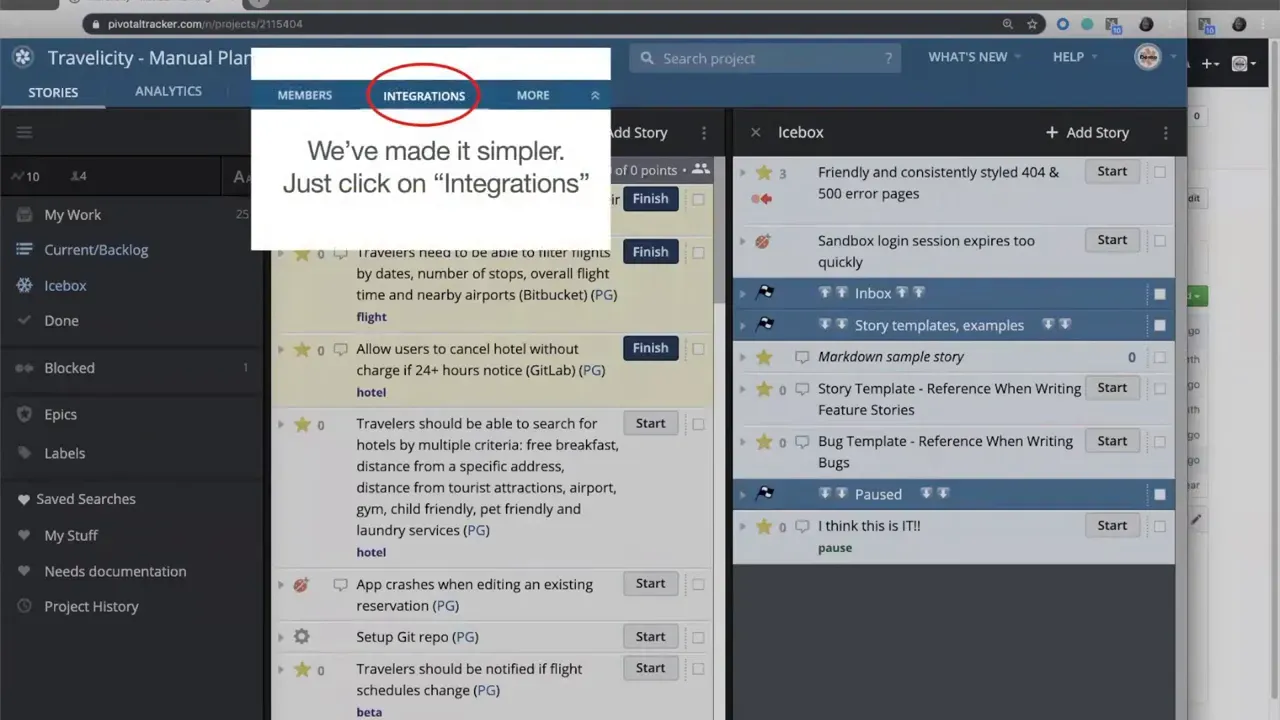
If you already have integrations configured you will see them listed. To add a new connection, click Add an Integration. This reveals the available options—select GitHub.
Step 2: Name the integration and select projects
Give the integration a recognizable name. Tracker suggests a default, but choose something meaningful to your team if you manage multiple repositories or environments. Next, specify which Tracker projects should receive updates from GitHub. The current project is pre-selected, but you can add others.
Saving at this point is important. The integration screen will generate a webhooks-and-events/webhooks/creating-webhooks" target="_blank">payload URL and a secret token only after you save. These values are required when creating the webhook in GitHub.
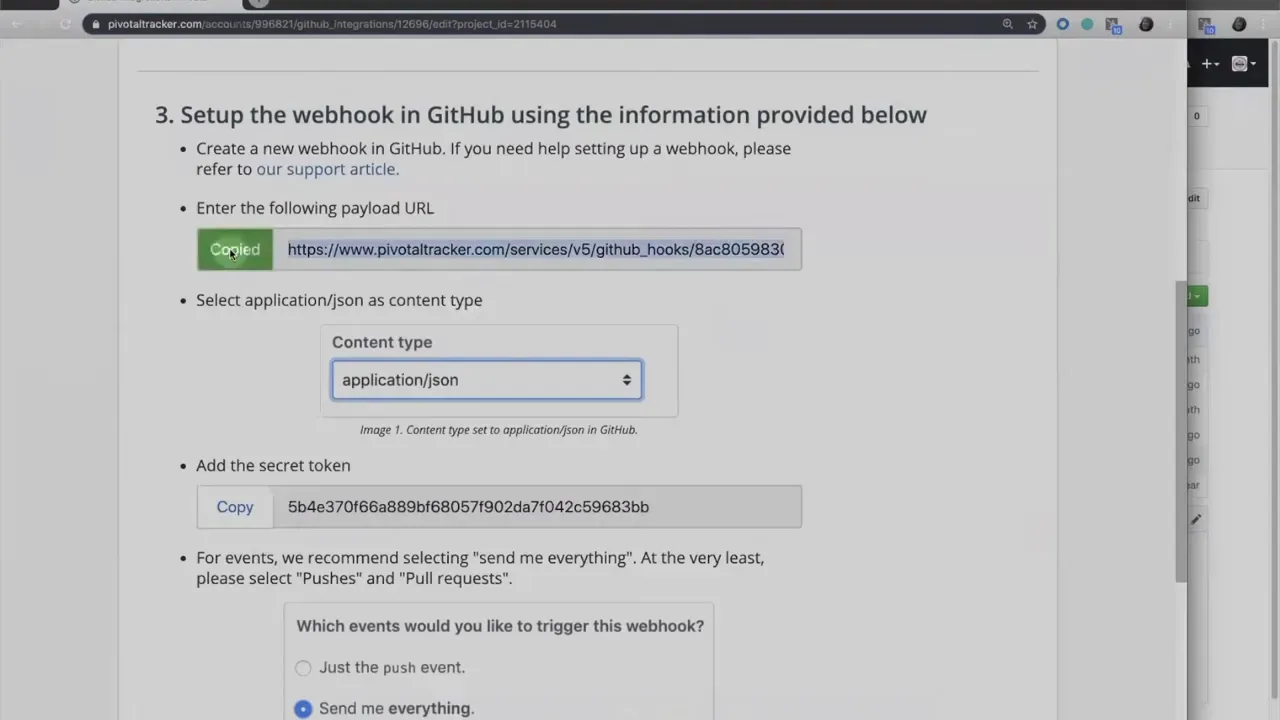
Step 3: Create a webhook in GitHub
Switch to the repository on GitHub. Go to Settings and then Webhooks. Add a new webhook and paste the payload URL you copied from Tracker. Back in Tracker, copy the secret token and paste it into the GitHub webhook's secret field. For the events, you can choose specific triggers such as push and pull request events, or select to send everything.
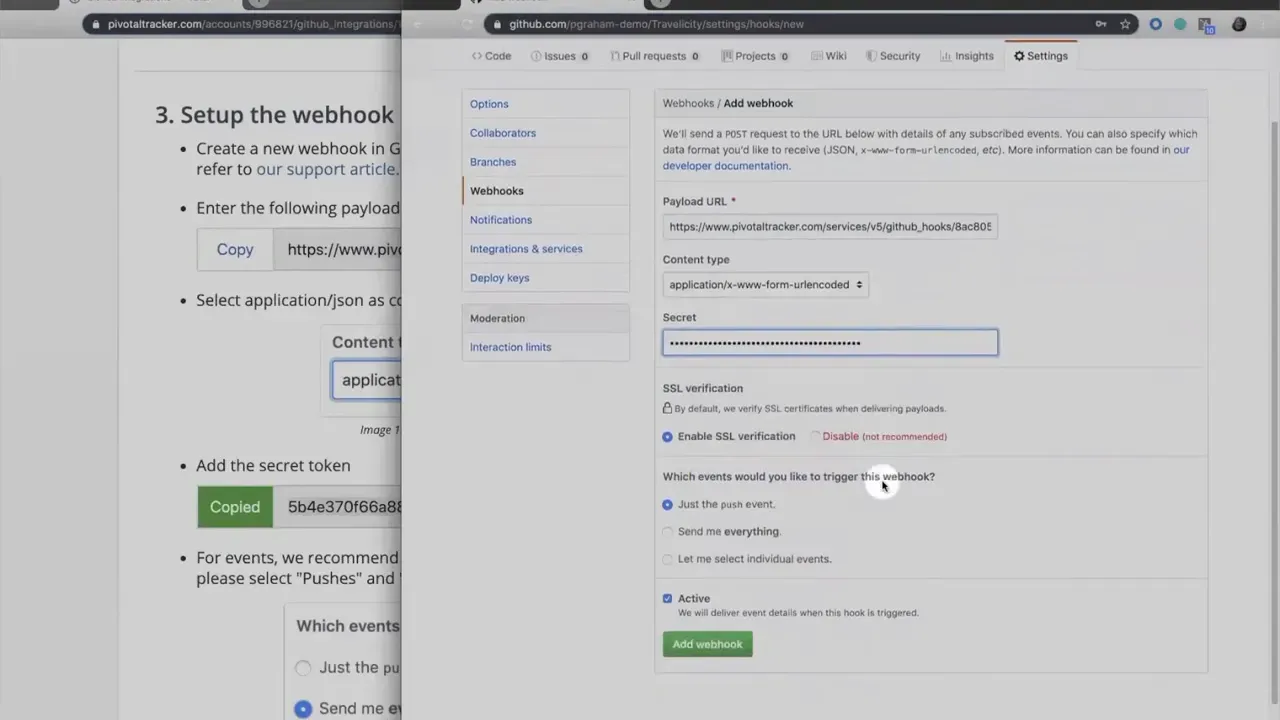
For demonstration and full visibility, select Send me everything. Then click Add webhook. With the webhook added, Tracker and GitHub can exchange events in real time.
Step 4: Associate a Tracker story with repository changes
Once the webhook is active, link code to stories using the story ID. Open the story you want to associate and click the story ID box to copy it. This ID is the bridge between commits and the story in Tracker or LiteTracker.
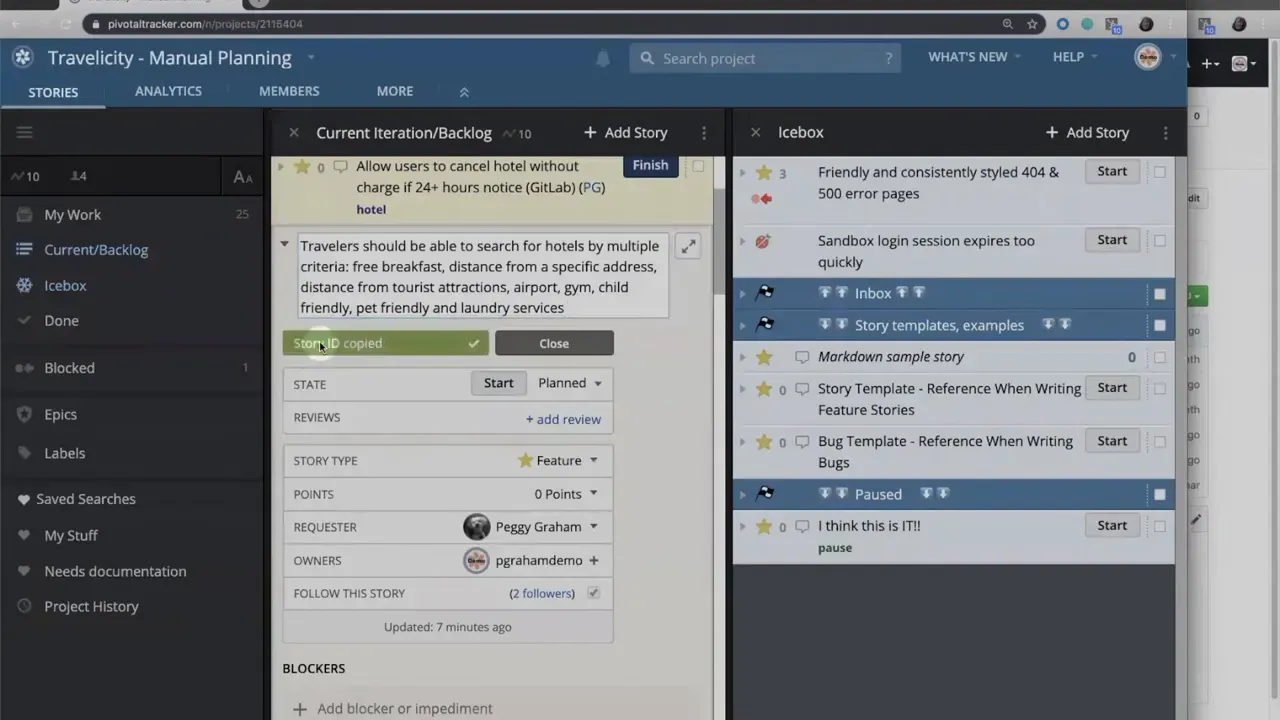
When GitHub sends updates referencing that ID, Tracker will do more than log the event. It will automatically transition the story state—for example, marking it started when a branch or commit references the ID.
Step 5: Make a code change, reference the story ID, and push
Developers typically work locally, commit, and push from the command line. At minimum, include the story ID in the commit message or branch name. For this example edit a file directly in the repository, paste the ID into the commit message, add a descriptive comment such as Implemented feature, and create a new branch instead of committing to master.
![GitHub commit dialog showing a story ID [#151569420] and the message 'implemented feature', with commit options and the Tracker sidebar visible.](https://blog.litetracker.com/content/images/2025/11/f79505d6-b419-45eb-b4d9-8c4dbf2b73aa.webp)
After you push the branch, GitHub will send the push event to Tracker. Tracker detects the ID and creates a link between the commit and the story.
Step 6: Open a pull request and merge
Create a pull request for the branch. When the pull request is opened, Tracker receives that event and adds the pull request to the story details. The integration reflects GitHub status colors and states directly in the story: green for passing checks, purple for merged, and so on. When you merge the pull request, Tracker updates the story status accordingly.
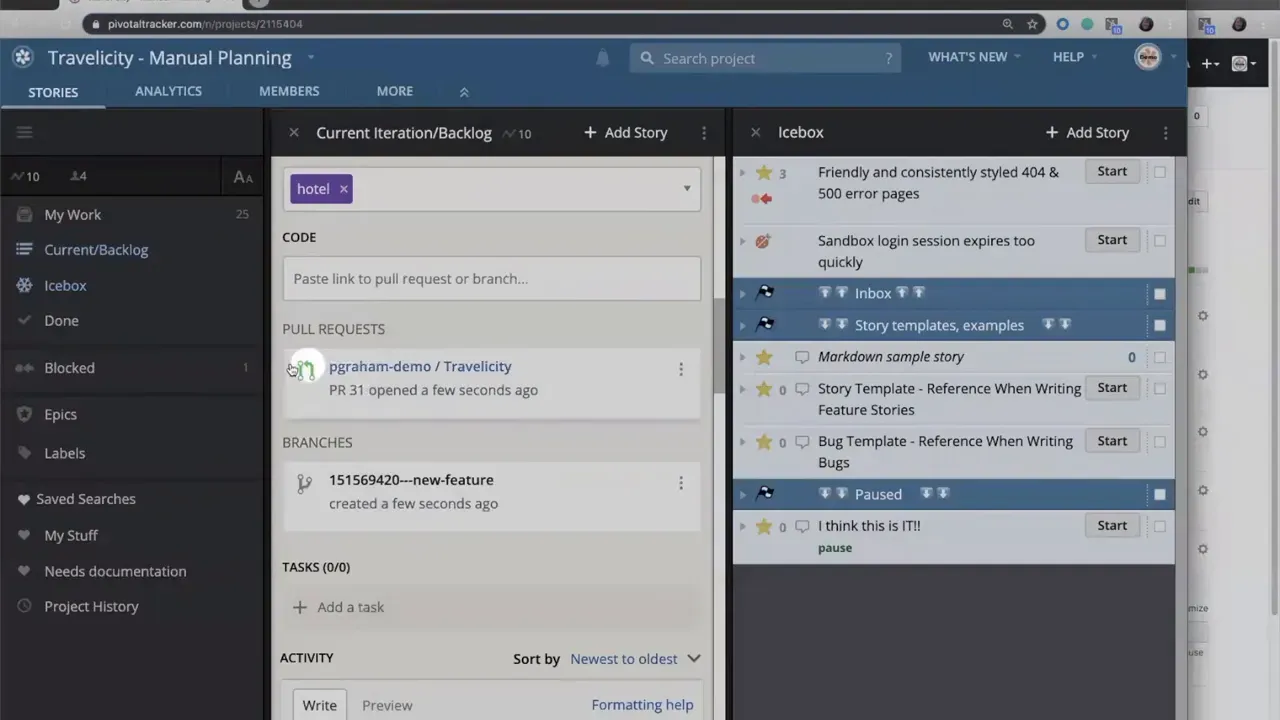
This live mirroring of status reduces context switching. You can see branch names, commits, and pull requests inside the story without leaving Tracker or LiteTracker.
Step 7: Review activity and audit changes
Open the story activity feed to see commits, comments, and status updates. Each commit message that contains the story ID becomes an entry in the activity log. That makes it easy to trace code changes back to the feature work, and it provides an audit trail for releases and retrospectives.
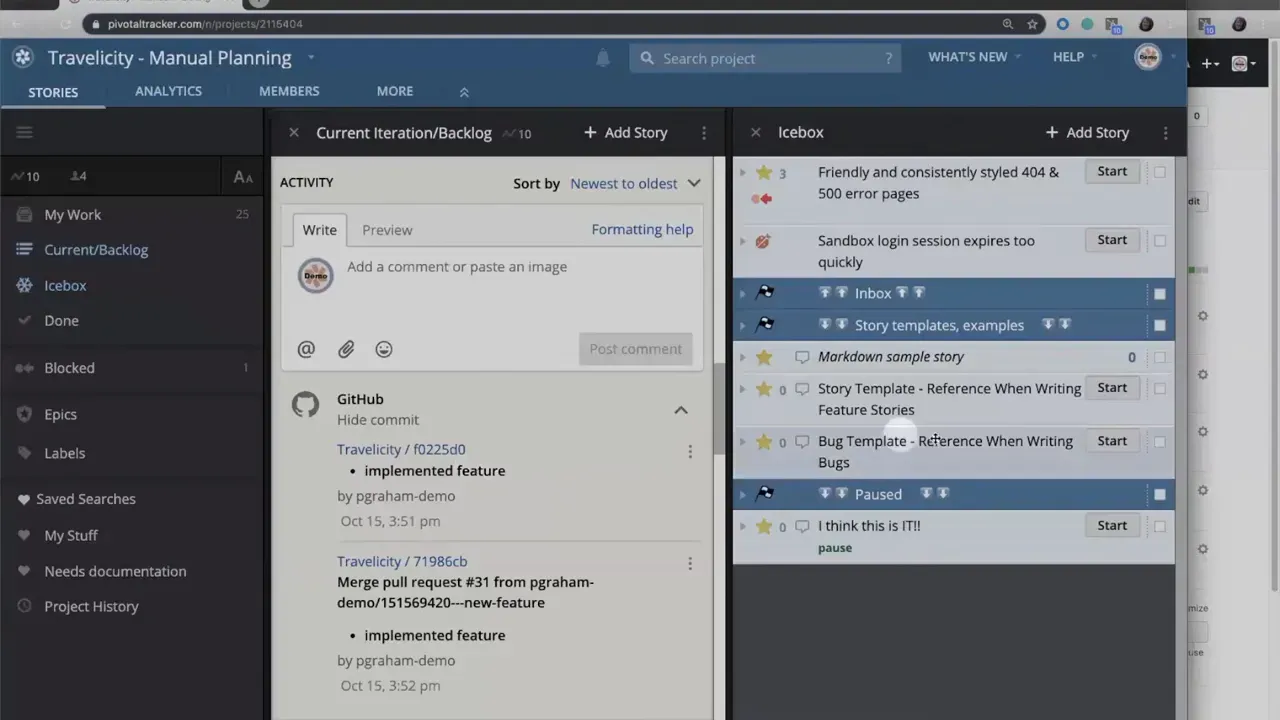
If your workflow includes CI checks, status checks and build results are included in the same stream so story owners can quickly verify readiness for delivery.
Tips for a smooth integration
- Standardize commit messages so the story ID is consistently referenced. For example prefix commit messages with the ID like 123456 Implemented validation logic.
- Use descriptive branch names and include the story ID to make navigation intuitive: story-123456-new-feature.
- Limit webhook scope if you only want push and pull request events to reduce noise.
- Automate status checks in GitHub to surface build and test results inside Tracker or LiteTracker.
- Document the process in your repo README so contributors know how to link code to stories.
Why this integration helps
The integration converts commit and pull request metadata into actionable project updates. It removes manual status updates, ensures story activity reflects actual development work, and lets product managers, analysts, and developers stay aligned. If you run a compact workflow like LiteTracker, these benefits are amplified: fewer meetings and clearer delivery signals.
"All of those updates were made automatically."
That single sentence captures the value: manual bookkeeping drops, and work visibility increases.
FAQ
What events should I enable for the webhook?
At minimum enable pushes and pull requests so commits and PRs are delivered. If you want complete visibility enable all events, but be mindful of the extra noise. LiteTracker teams often start with pushes and pull requests and expand from there.
Do I need to include the story ID in commit messages?
Yes. Including the story ID in the commit message or branch name is the simplest way to link code to a Tracker story. The integration relies on that ID to update story status and activity automatically.
Can multiple Tracker projects receive updates from a single repository?
Yes. When configuring the integration you can select additional Tracker projects to receive updates. Choose only the projects that make sense to avoid cross-project noise.
How are merge and CI statuses reflected in Tracker?
Tracker mirrors GitHub status colors and states in the story. Passing checks and open PRs show their statuses so you can see green builds or merged purple states without leaving Tracker or LiteTracker.
What if I prefer a lightweight setup like LiteTracker?
LiteTracker works the same way conceptually. Use consistent IDs in commits and branches and set up the same webhook. The lighter interface still receives commits, branches, and PR updates and benefits from automatic story transitions.
How do I troubleshoot missing updates?
First check the webhook delivery history in GitHub to confirm events are sent. Verify the payload URL and secret token match what Tracker provided. Confirm the story ID was included in the commit or branch name and that the selected Tracker project is receiving updates.
Wrap up
Linking GitHub and Tracker or LiteTracker closes the loop between code and planning. With a few straightforward steps—create the integration, add the webhook, and reference story IDs in commits—your stories will reflect actual development progress automatically. That saves time and keeps the team focused on building useful things.
Credits: This tutorial is created based on this original video GitHub + Tracker Integration