
LiteTracker Story Workflow: A Step by Step Guide

LiteTracker makes managing work visible and predictable. This guide walks through a practical story workflow so teams can plan, start, review, and finish work with confidence. Follow these steps to move stories from the icebox into done while keeping priorities clear and handoffs clean.
Step 1: Move a high priority story from the icebox
Start by reviewing the icebox and the current iteration. When an urgent enhancement appears, drag it from the icebox into the current iteration. LiteTracker enforces priority: work already in progress is always above unstarted items. You can place the new story at the top of the unstarted section so it becomes the next thing the team picks up.
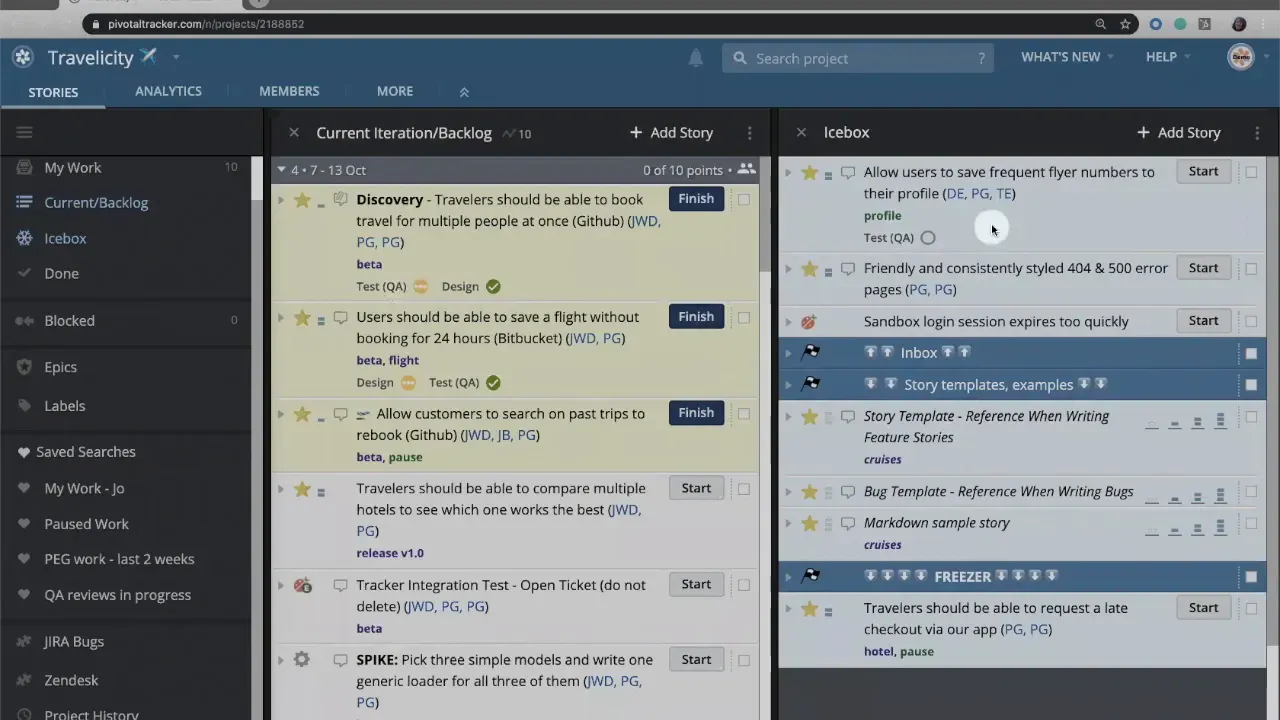
Step 2: Estimate before you start
LiteTracker requires an estimate before you can start a story. Assign story points during your planning conversation. Once estimated, the Start button appears. Estimation keeps capacity realistic and maintains velocity calculations.
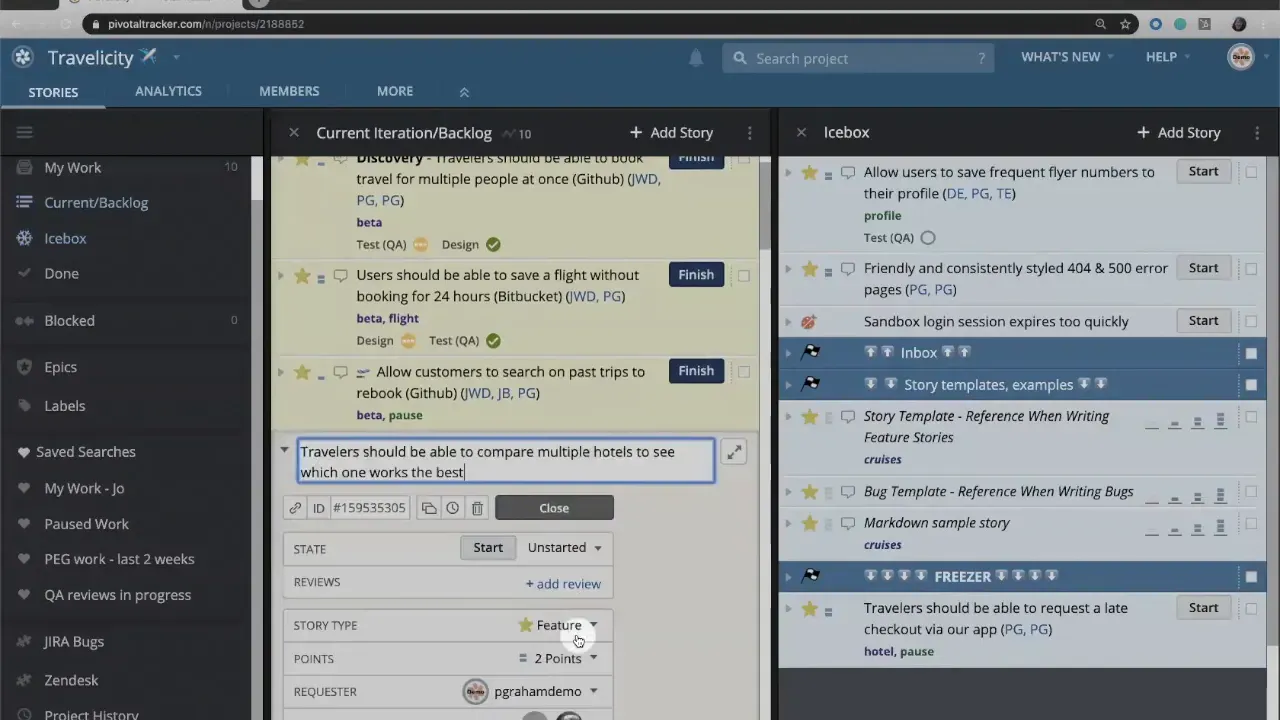
Step 3: Click Start to mark in progress
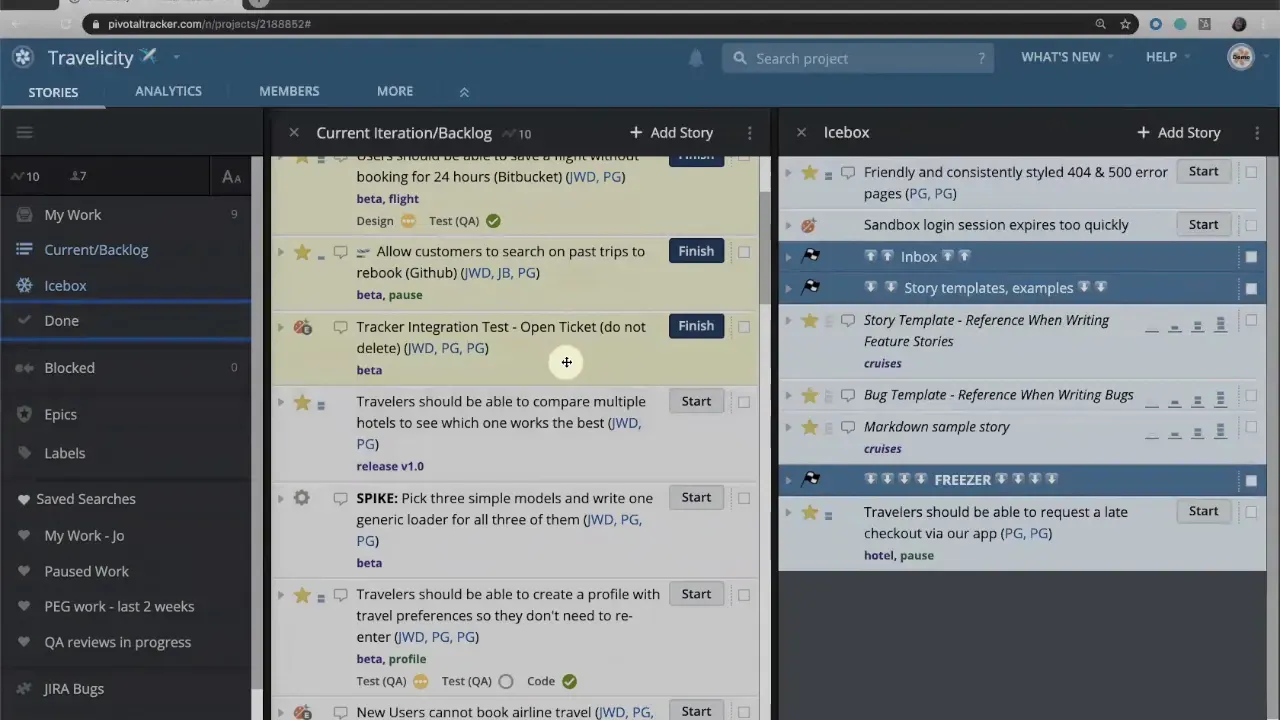
Click Start to change the story state to in progress. LiteTracker highlights in-progress work so the team can see at a glance who is doing what. If this story becomes the team’s top priority, drag it to the top of the in-progress list so it is visibly prioritized.
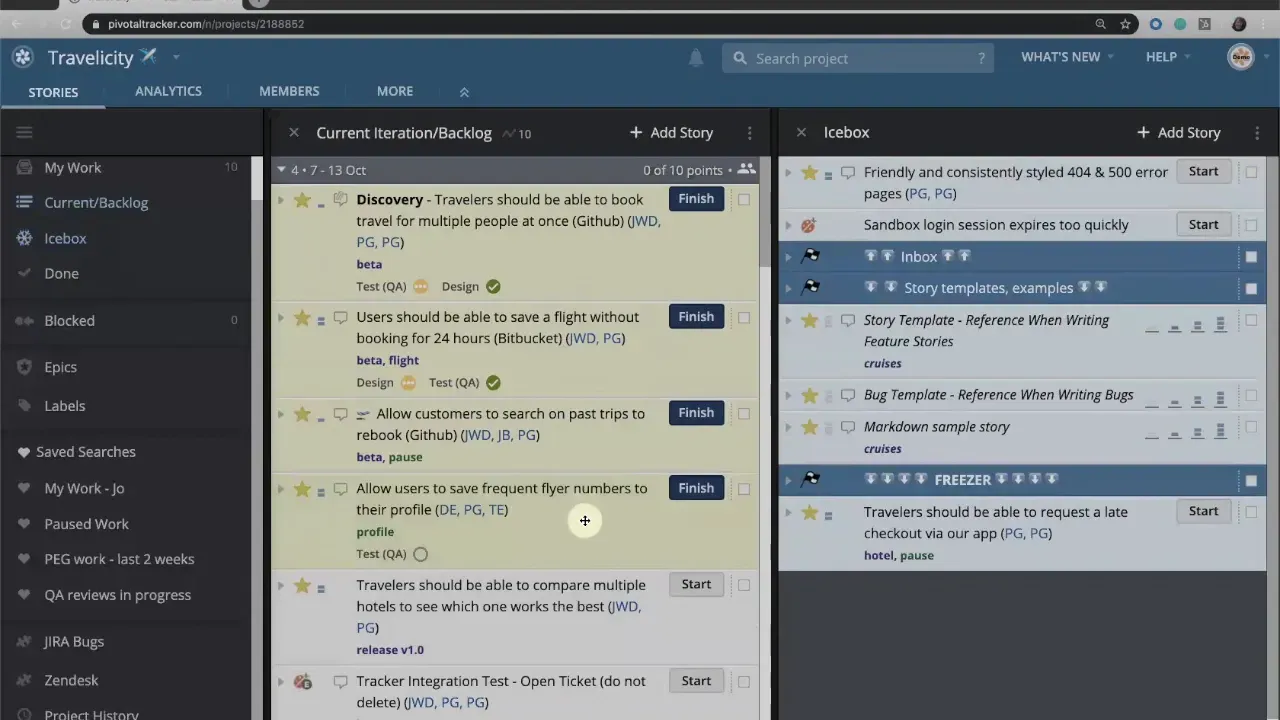
Step 4: Track development reviews and comments
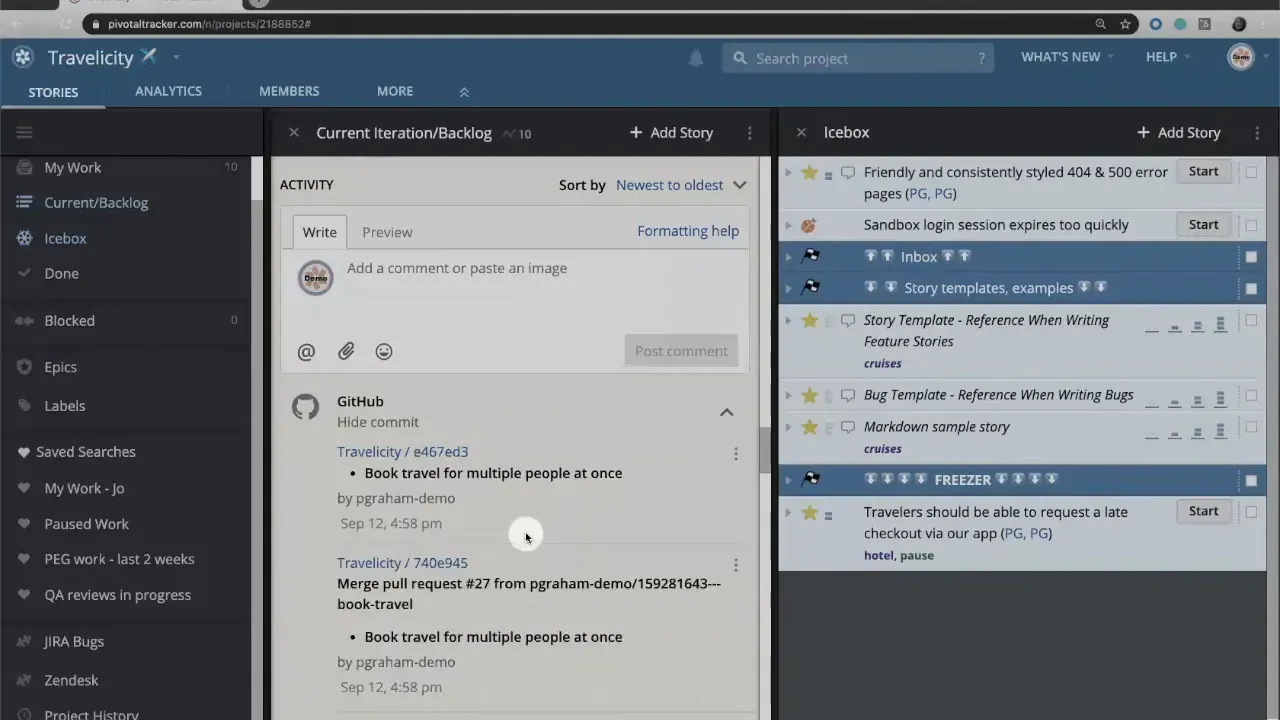
During development, use reviews to track code review, unit test verification, or design sign-off. Each review has a type and a status. When a developer completes a review, they can mark it as pass or request revisions and add comments. Use the activity feed to document decisions, branch names, pull requests, and commits so the story history is a single source of truth.
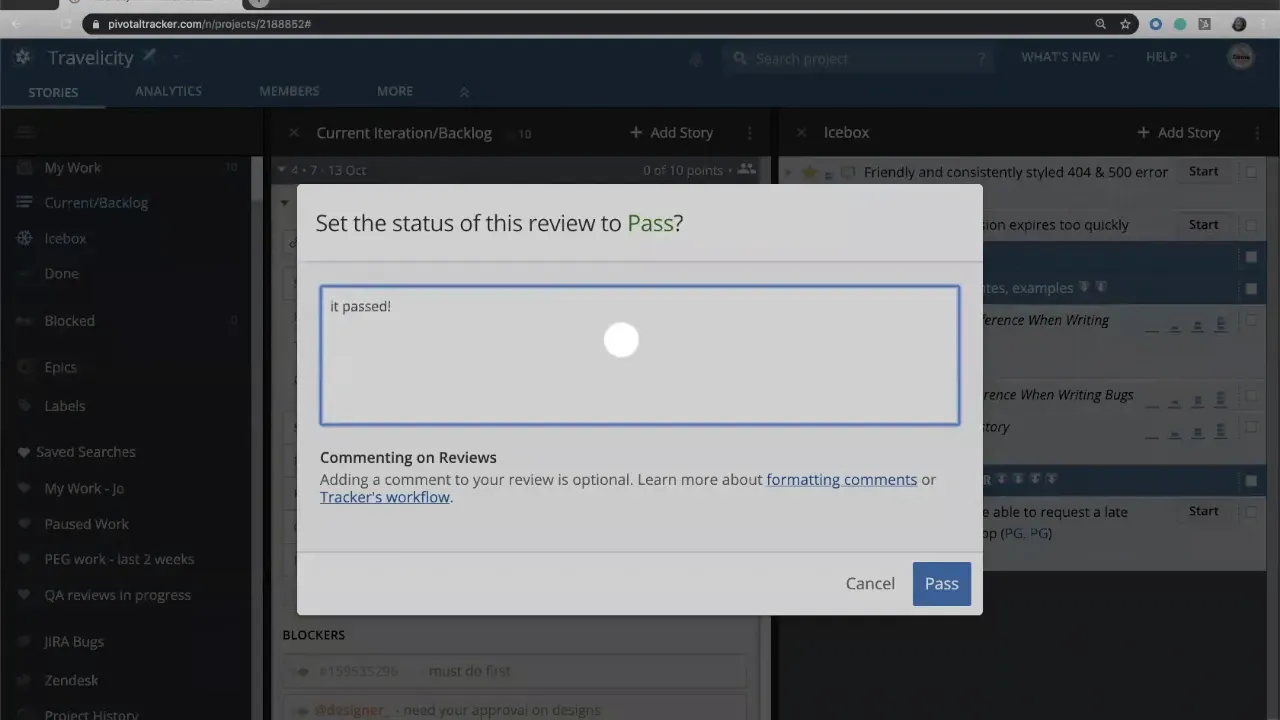
Step 5: Finish development and Deliver for QA
Once development and associated reviews are complete, click Finish. That moves the story into a delivered state ready for QA or staging. Delivering signals that the build is available for formal acceptance testing or stakeholder review.
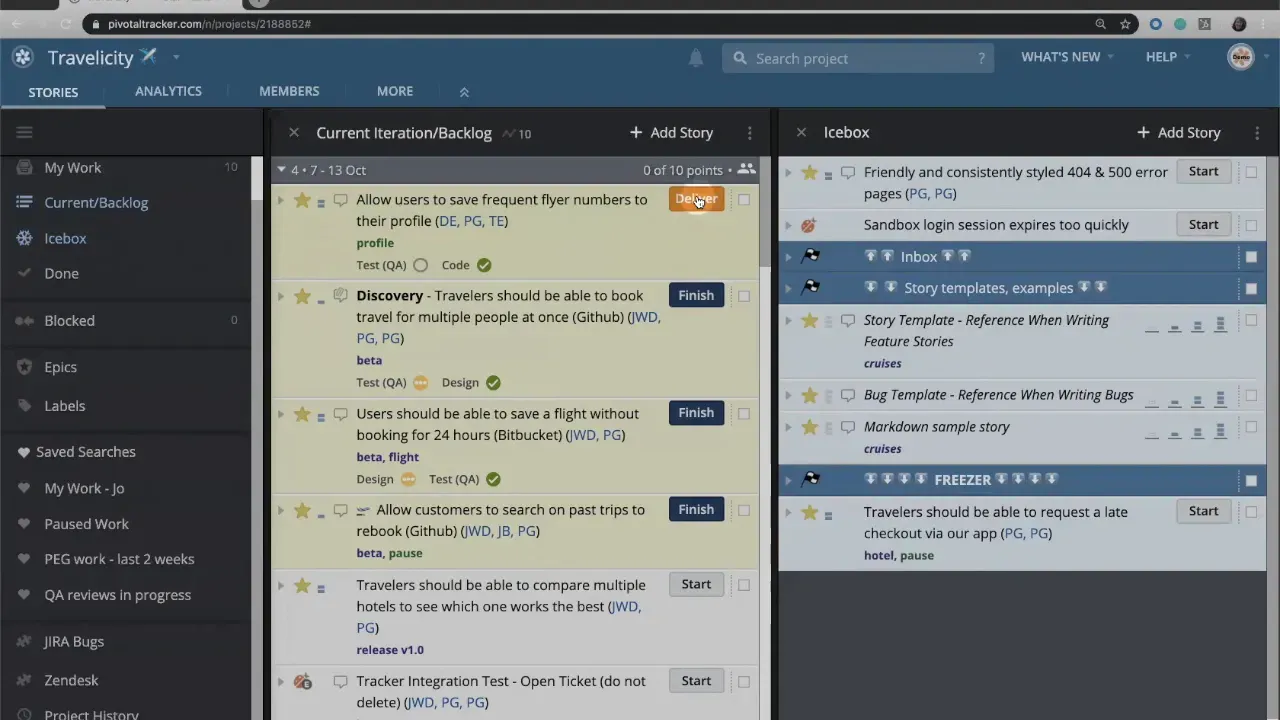
Step 6: QA review and accept or reject
When QA or a product manager reviews the delivered work, they can accept or reject the story. Use concise, actionable comments when rejecting so developers know exactly what to change. LiteTracker records these comments in the activity feed which maintains an audit trail of feedback and fixes.
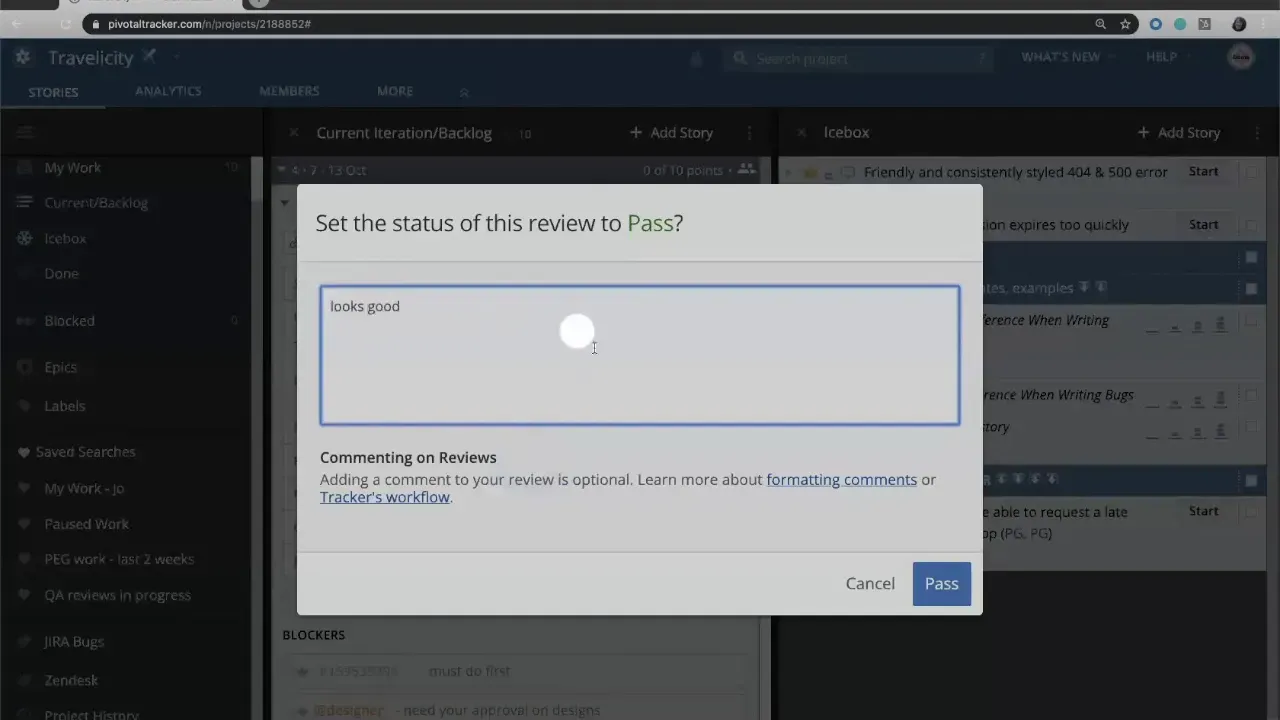
Step 7: Handle rejects with Restart
If the PM or QA rejects a story, click Restart to move it back into in progress. The story then repeats the same cycle: develop, finish, deliver, and review. This preserve flow and keeps the accountability chain intact. LiteTracker also warns if you try to accept a story while tasks, reviews, or blockers remain incomplete, preventing accidental sign-offs.
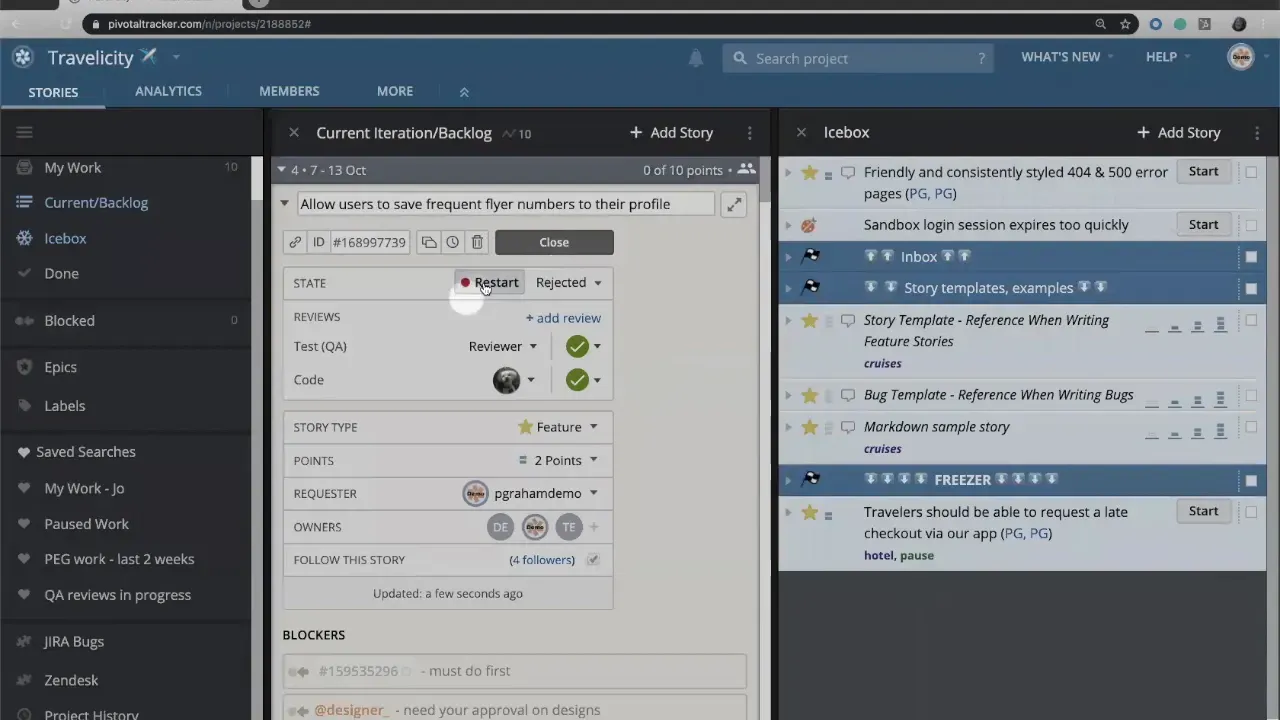
Step 8: Iteration boundaries and velocity recalculation
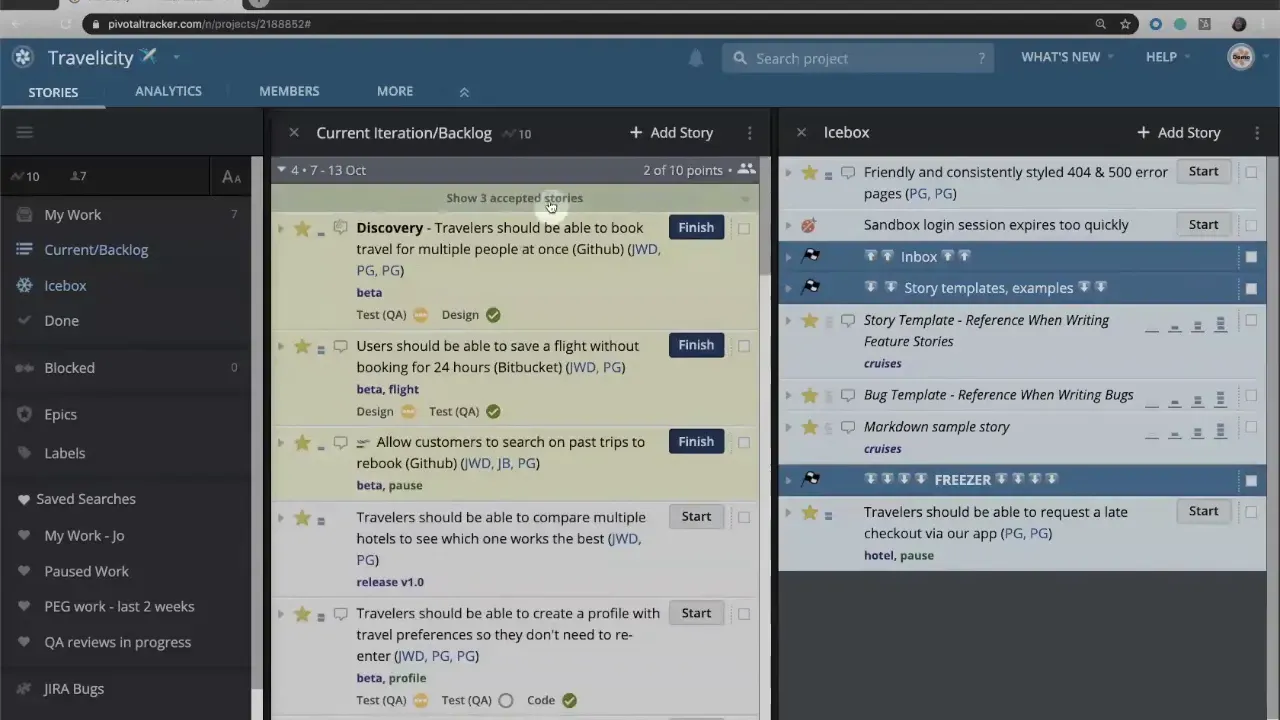
Completed stories remain visible in the iteration until the iteration ends. When an iteration closes, LiteTracker moves completed work into the done panel and marks it with the iteration number. Any incomplete work rolls forward into the next iteration. At that point LiteTracker recalculates team velocity and replans the backlog based on actual delivery performance.
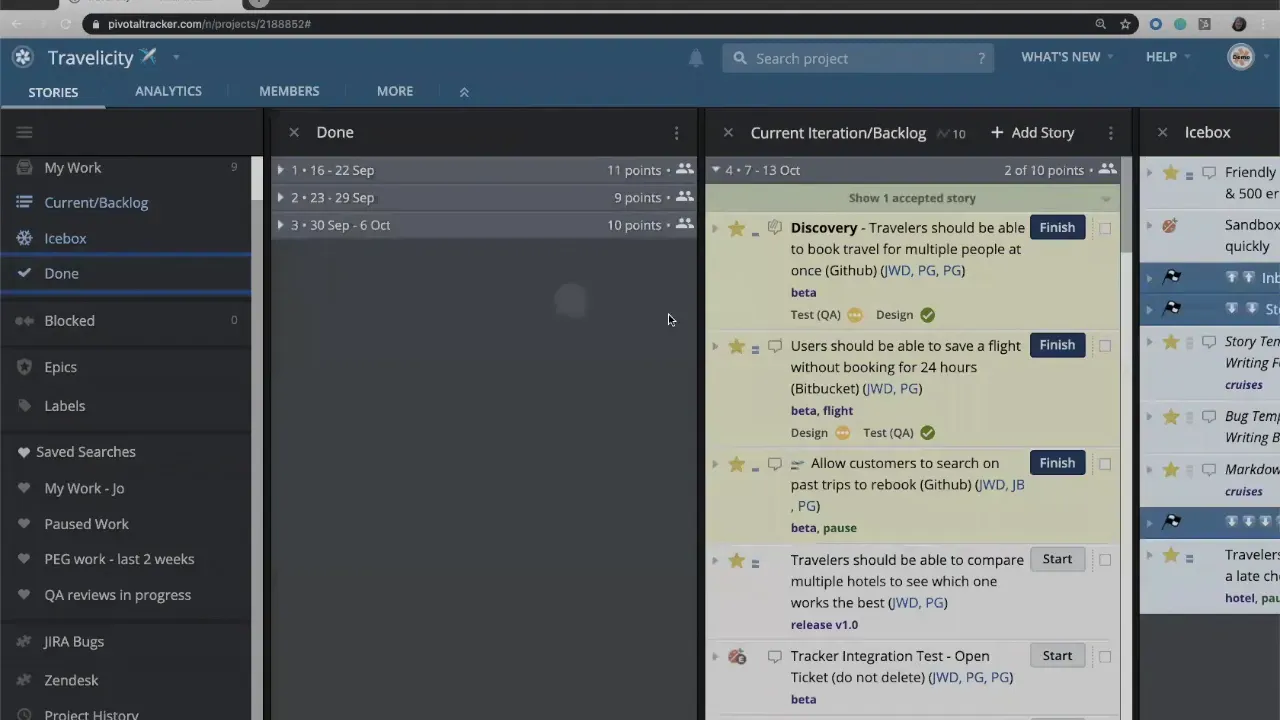
Step 9: Bug workflow mirrors feature workflow
Bugs follow the same lifecycle as features in LiteTracker. Start a bug, finish development, deliver for QA, and accept or reject. Because bugs are customer-facing fixes, they require the same review and acceptance rigor that features do.
Step 10: Chores use a simplified workflow
Chores are internal or technical tasks that do not require customer acceptance. Examples include environment upgrades, research spikes, or sandbox setup. In LiteTracker, chores typically only need a Start and Finish. They jump to the top when started but do not require a deliver or accept step since there is no external sign-off.
Step 11: Use SCM integrations and the activity feed
Link branches, pull requests, and commits to stories so context travels with the work. LiteTracker surface SCM activity inside the story, and the activity feed should hold short notes about progress, troubleshooting, and decisions. Treat the feed as the story’s living log.
Step 12: Prioritization rules to keep flow steady
Remember these practical rules:
- In-progress > unstarted. Work already started always outranks unstarted work.
- Estimate first. Don’t start a story until it has story points.
- Document activity. Add notes, links to PRs, and CI output to each story’s feed.
- Use reviews. Capture code review and QA review results on each story.
Best practices for teams using LiteTracker
Adopt a consistent workflow so the entire team understands the lifecycle of a story. Use short, clear acceptance criteria so QA and PMs can validate work quickly. Keep comments actionable. If a story is rejected, include reproductions, screenshots, or links to failing tests.
Maintain a rhythm of estimation and planning so LiteTracker can calculate velocity accurately. Re-plan after each iteration to match what the team actually delivered. This keeps the backlog realistic and helps stakeholders set expectations.
How do I prioritize urgent work without disrupting in-progress tasks?
Place the urgent item at the top of the unstarted list. LiteTracker ensures in-progress work remains above unstarted items. If the urgent item must interrupt active work, communicate and reassign as necessary, but avoid placing unstarted work above in-progress work.
What happens if a story is accepted but has incomplete tasks?
LiteTracker warns you before accepting. Resolve incomplete tasks or reviews first, or add a clear blocker that explains why accepting is appropriate despite the incomplete items.
When should chores be used instead of features?
Use chores for internal tasks that do not directly deliver customer value or require sign-off. Examples include environment upgrades, research spikes, and maintenance work.
How does LiteTracker use story points and velocity?
Assign story points during planning. LiteTracker uses completed points over iterations to calculate velocity. At iteration boundaries LiteTracker recalculates velocity and replans the backlog to reflect the team’s delivery rate.
Can I see code commits and pull requests inside a story?
Yes. Integrate your source control so branches, PRs, and commits are visible on the story. This keeps development context and history attached to the work item.
Closing notes
Following a disciplined story workflow reduces handoff friction and keeps work flowing predictably. LiteTracker’s simple rules around estimated starts, in-progress visibility, and clear deliver/accept transitions help teams deliver value consistently. Keep the activity feed current, use reviews to capture verification, and treat iteration boundaries as moments to learn and replan.
Credits: This tutorial is created based on this original video Tracker Story Workflow