
LiteTracker: Let Velocity Plan Your Work So You Can Focus on Building

LiteTracker takes the guesswork out of iteration planning by using velocity to automatically decide how much work your team should pick up each cycle. This guide walks you through a practical, step by step approach to setting up, estimating, and trusting LiteTracker to plan iterations for you, while keeping control whenever you need it.
Step 1: Configure your velocity strategy
Open your project settings and find the iterations and velocity section. LiteTracker uses a velocity strategy to determine how many points your team can take on in the next iteration. The default is to average the last three iterations. That simple choice gives a stable, recent view of capacity.
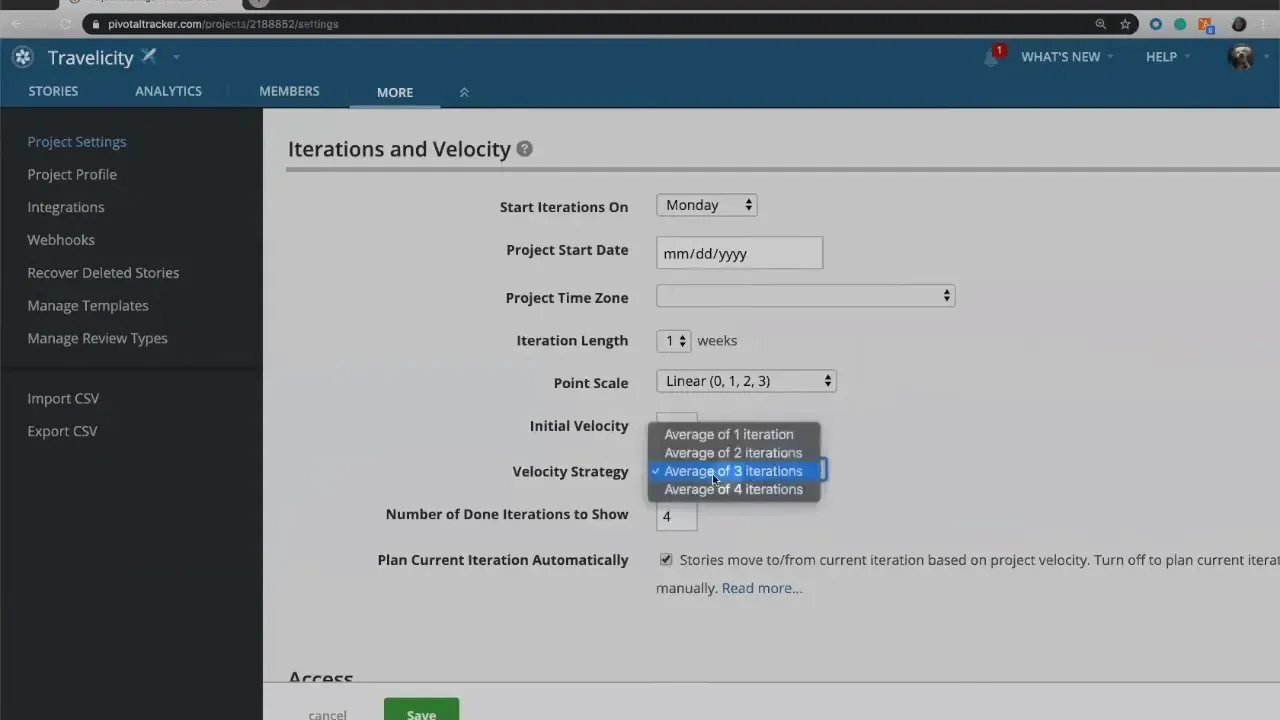
Why average? Averaging recent iterations smooths spikes or dips so your plan is realistic. If your last three iterations were 11, 9, and 10 points, LiteTracker will show an average velocity of 10 and plan your upcoming iteration around that number.
Step 2: Choose a point scale and estimate stories
Before LiteTracker can plan, you must estimate work. Select a point scale from the options: linear (0, 1, 2, 3), powers of two, Fibonacci, or a custom set if you prefer. I usually stick with the linear scale because it maps cleanly to t-shirt sized thinking.
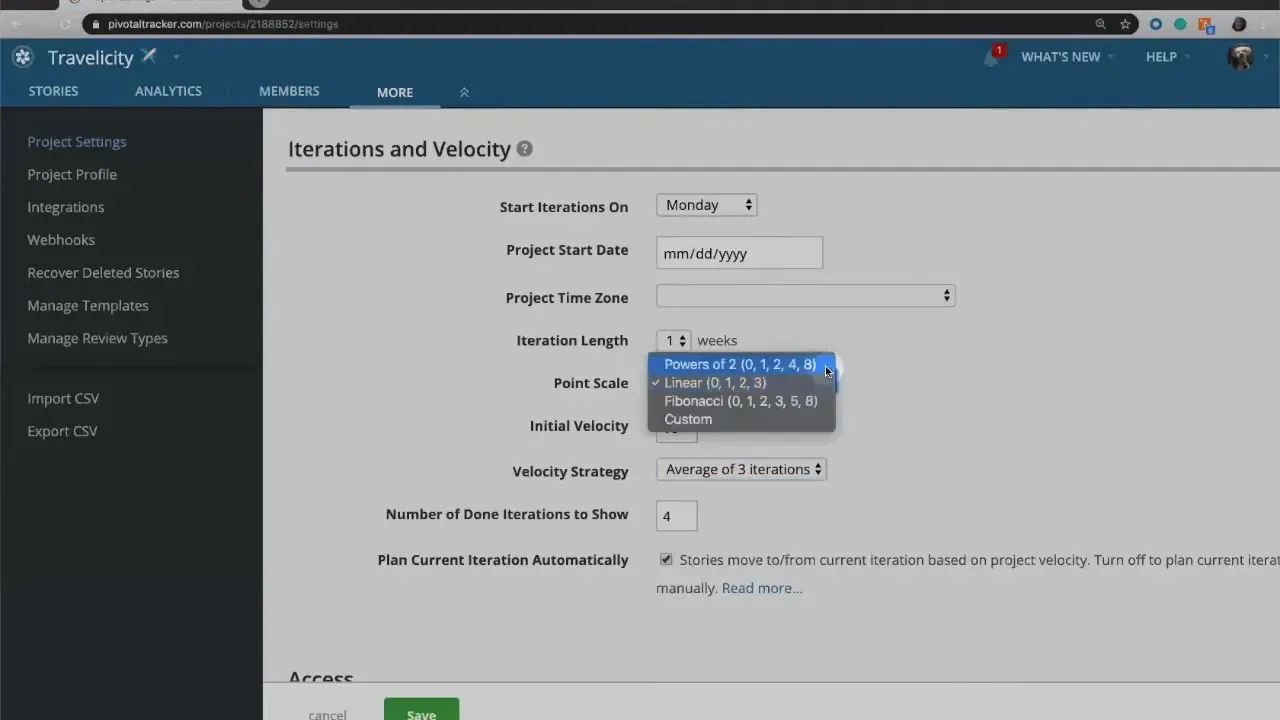
Story points represent effort, complexity, risk, or uncertainty — not time. Think of them as t-shirt sizes: zero for trivial, one for small, two for medium, and three for large. The goal is a roughly right estimate, not a precisely wrong time prediction.
Step 3: Create stories and estimate collaboratively
Add stories to the backlog and estimate them together as a team. Use a simple voting technique: each person silently picks the point value they believe fits, then reveal simultaneously. If everyone picks two, the story is two. If votes diverge, discuss the gaps.
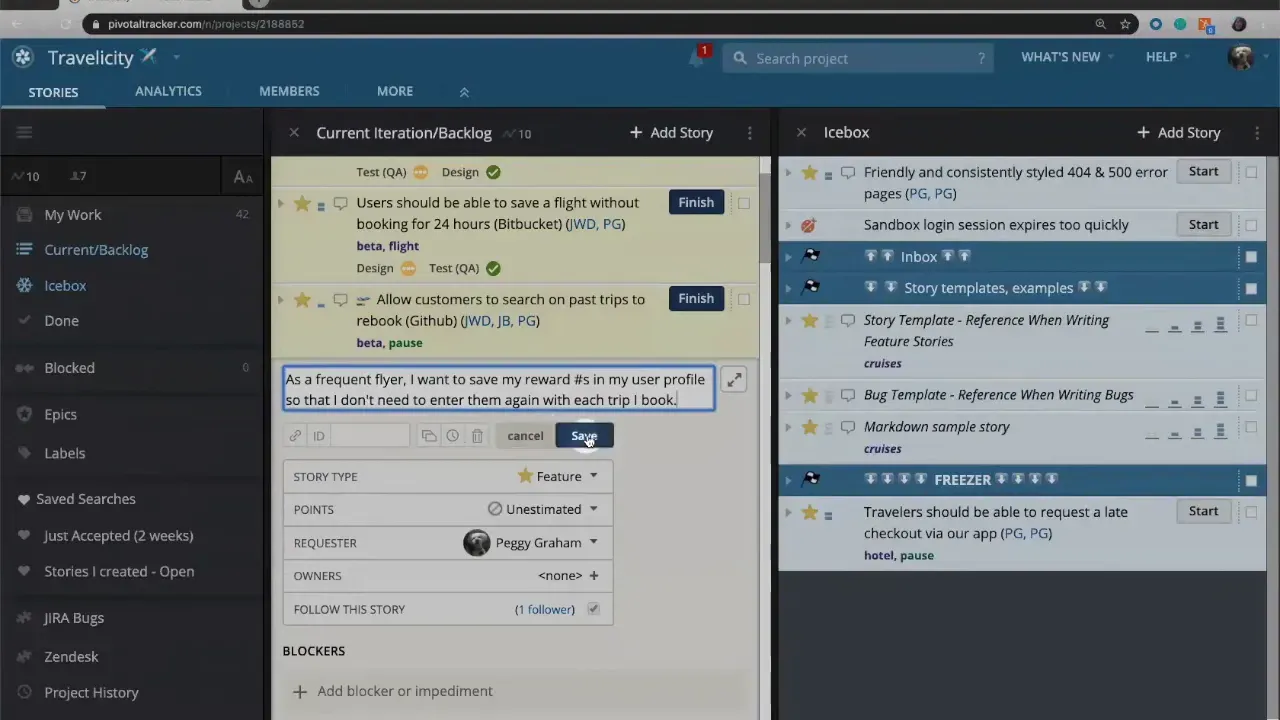
Often someone offers context that shifts the team — maybe there is reusable code, or an unforeseen integration risk. That conversation is the value of collaborative estimation. If a team cannot reach agreement, use a working rule: size up, use the average, or apply another agreed rule and move on. The goal is progress, not paralysis.
Step 4: Stack rank the backlog
Once stories are estimated, order them by priority. Stack ranking means placing the most important story at the top and less critical ones below. LiteTracker relies on this ordering to decide which stories to include in each planned iteration.
Prioritization forces clarity. You cannot have many “most important” items, so the team must decide what matters now. This feeds LiteTracker’s automatic planning with both size and priority information.
Step 5: Let LiteTracker plan your iterations
With estimates and priorities in place, LiteTracker draws iteration markers on the backlog and fills them up based on the configured velocity. It prevents overplanning by ensuring the sum of story points in an iteration aligns with recent capacity.
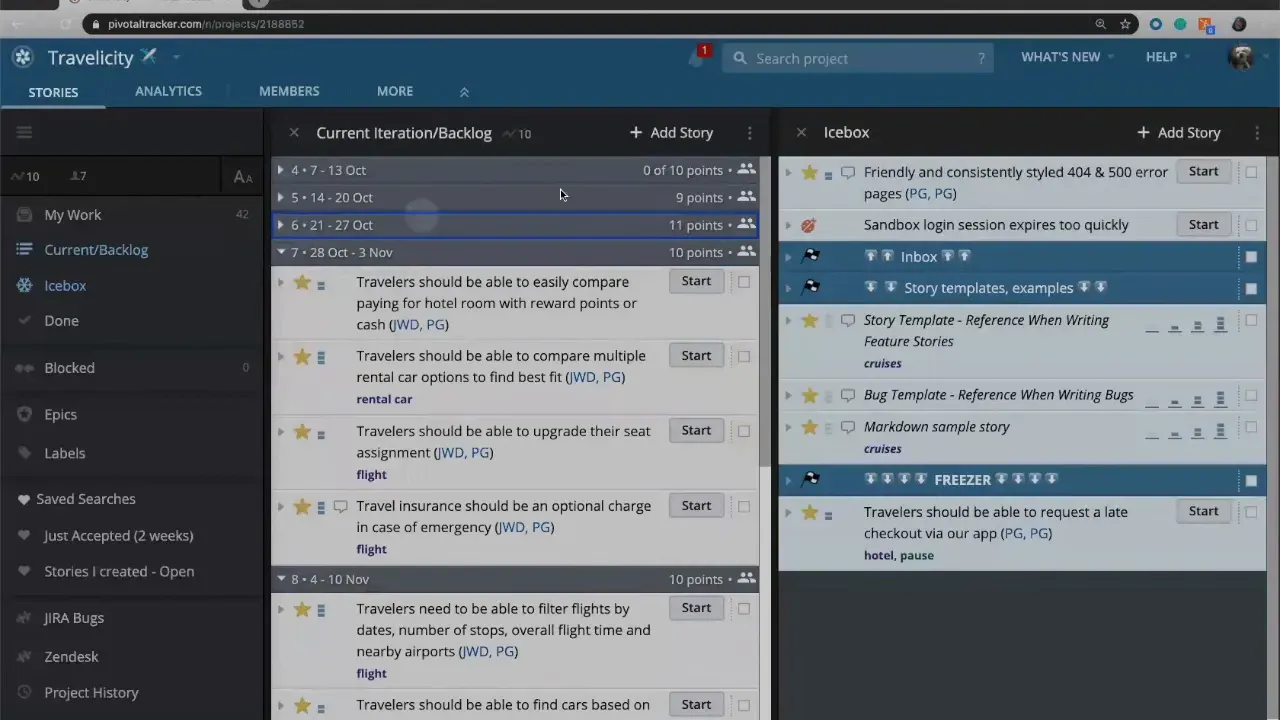
As work is completed within an iteration, LiteTracker moves items to the done column when the iteration ends. Unfinished work slides into the next iteration. After each iteration completes, LiteTracker recalculates velocity using your chosen strategy and replans the backlog automatically.
Step 6: Adjust team strength and temporary changes
Sometimes capacity changes temporarily. LiteTracker offers a team strength setting that scales velocity for a given iteration. If half your team is at a conference, set team strength to 50 percent and LiteTracker will scale planned points accordingly. When that period ends, revert back to 100 percent.
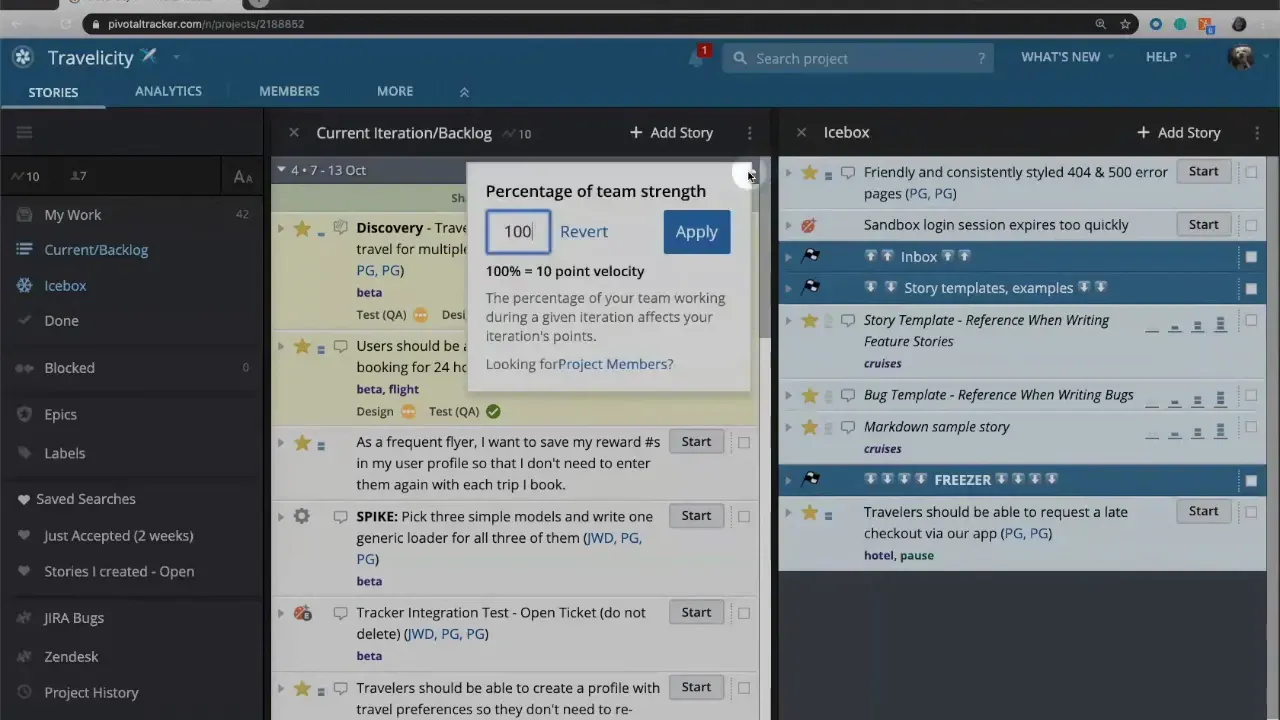
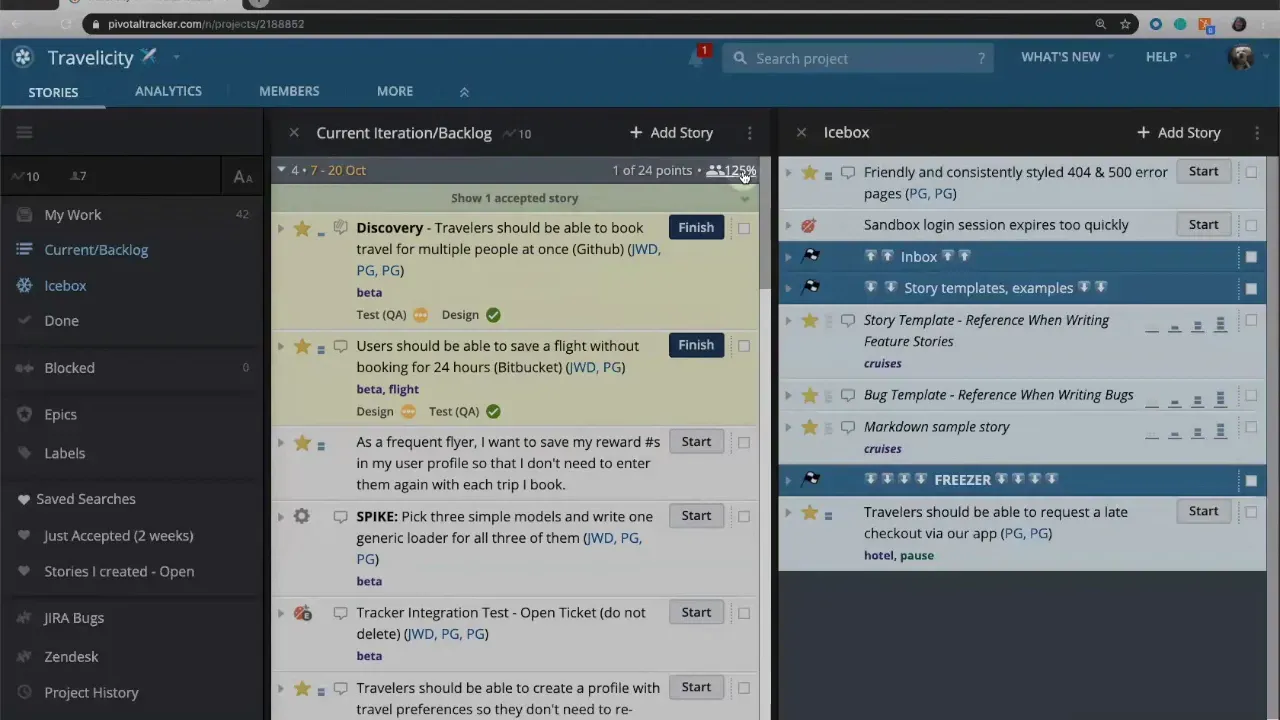
You can also apply a temporary override for experimentation. Try bumping your current iteration to 120 percent to simulate adding temporary help, such as an intern. These transient changes let you see “what if” scenarios without altering persistent settings. Refreshing the page will revert temporary changes back to the real calculated velocity.
Step 7: Override iteration length when needed
LiteTracker assumes an iteration length but allows overrides when a single iteration needs a different cadence. If you want one iteration to be two weeks instead of one, change it for that iteration. LiteTracker highlights modified iterations so you can see which ones deviate from your default.
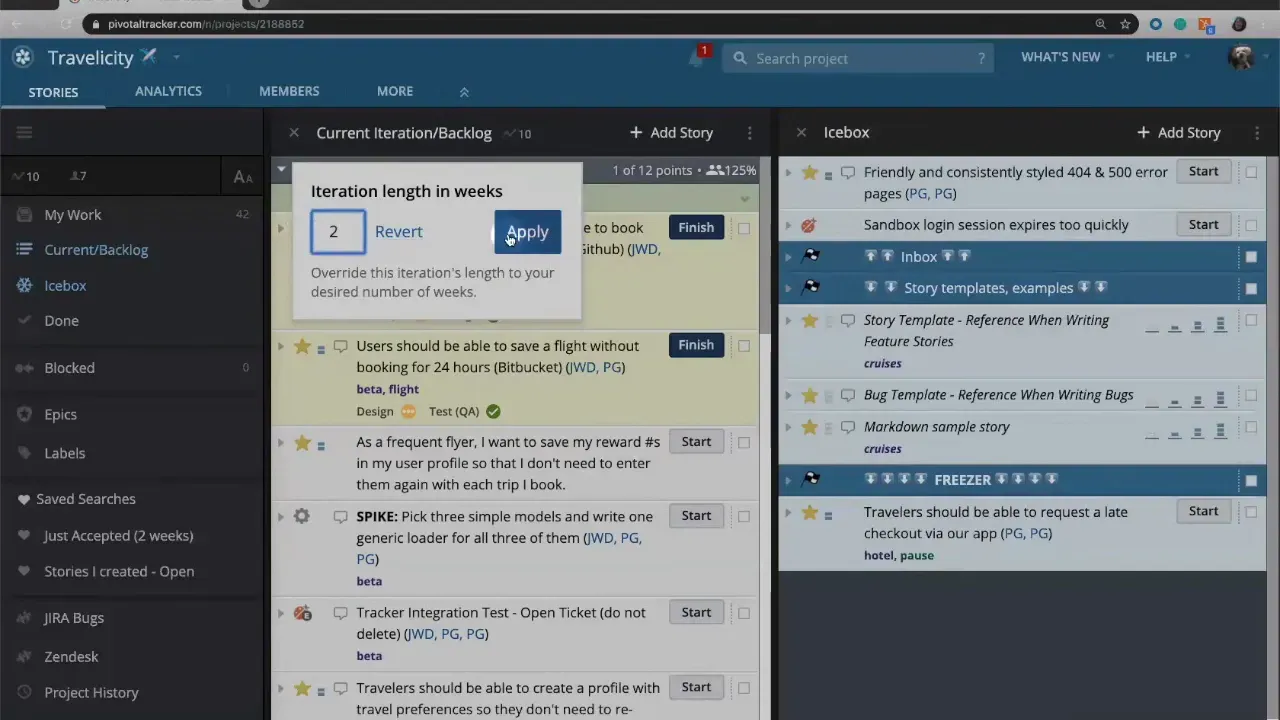
Persistent changes remain visible in the plan. Temporary tweaks are useful to model outcomes, while persistent changes reflect actual process adjustments.
Tips to get the most from LiteTracker
- Keep estimates consistent: Use the same point scale across the project so velocity reflects comparable work.
- Prioritize clearly: Stack rank ruthlessly so planning picks the right work first.
- Use team strength smartly: Model real-world events like vacations and conferences rather than compensating manually.
- Trust the averages: Let LiteTracker smooth volatility; avoid micromanaging every iteration unless you have a strong reason.
"Story points do not represent time. They are there to represent the amount of effort or complexity that it's going to take us to finish a story."
Common scenarios and how LiteTracker handles them
- Unexpected drop in capacity: Reduce team strength for the affected iteration. LiteTracker will replan and shift incomplete work.
- Temporary boost from a contractor: Use a temporary override to see the effect without permanently changing velocity.
- Variance in estimates: Use retrospective discussion to align future estimates and ensure the velocity window reflects real team performance.
FAQ
How does LiteTracker calculate velocity?
LiteTracker averages recent iterations according to the configured velocity strategy, typically the last three. That average becomes the basis for planning upcoming iterations.
Do story points equal hours or days?
No. Story points represent relative effort, complexity, and uncertainty. They help compare stories against each other rather than tracking exact time.
Can I change the point scale used by LiteTracker?
Yes. Choose linear, powers of two, Fibonacci, or define a custom scale that fits your team’s habits.
What happens to unfinished stories at the end of an iteration?
Unfinished stories move into the next iteration. LiteTracker recalculates velocity and replans the backlog automatically each iteration.
How do I handle temporary changes in team capacity?
Adjust team strength for the affected iteration. For hypothetical scenarios, use a temporary override to preview changes without persisting them.
How many past iterations should be used to calculate velocity?
Default is three, which balances recency and stability. Teams can experiment with longer or shorter windows to see what produces the most predictable planning.
Can LiteTracker overplan work?
LiteTracker is designed to avoid overplanning by constraining each iteration based on calculated velocity and any team strength adjustments you set.
Final thoughts
LiteTracker frees teams from manual iteration planning so you can spend more time solving problems and shipping value. Set up a clear point scale, estimate collaboratively, stack rank your backlog, and let LiteTracker do the rest. Use team strength and temporary overrides when reality deviates from your usual capacity. Over time, the velocity-driven approach helps your team predictably deliver against prioritized work.
LiteTracker works best when estimates are consistently applied and priorities are clear. Trust the process, tweak settings when necessary, and use the planning automation to maintain steady, sustainable delivery.
Credits: This tutorial is created based on this original video Velocity and how Tracker plans work for you