
LiteTracker Reviews: A Practical Step-by-Step Guide to Manage Parallel Work
LiteTracker makes it simple to see who needs to review what and whether a review is complete. This guide walks you through using LiteTracker reviews to capture parallel work on stories, add custom review types, assign reviewers, track status, and close the loop with clear comments and notifications. Think of reviews as a lightweight, visible audit trail that sits alongside your normal LiteTracker workflow.
Step 1: Create or manage review types in LiteTracker
LiteTracker ships with four built-in review types: test QA, design, code, and security. You can use those as-is or extend LiteTracker with custom review types such as metrics, done, or risk.
To add or hide review types, open the Manage review types section. LiteTracker does not remove built-in types permanently, but you can hide ones you do not use so your review dropdown stays focused on the types your team cares about.
- Add custom types for any repeatable check your team performs.
- Hide unused types to reduce clutter without deleting history.
- Keep the list relevant so reviewers scan fewer options and act faster.
Step 2: Add reviews to a story
Once a story is created and saved in LiteTracker, click the option to add a review. You can attach multiple reviews of the same type to a story—useful when you want more than one QA engineer to validate a delivery.
Example: add a code review, a design review, and two test QA reviews to the same story so two QA teammates can independently verify the outcome.
- Multiple reviewers per type increases confidence and documents independent checks.
- Assign specific people so reviewers receive notifications and ownership is clear.
Step 3: Assign reviewers and interpret status icons
Assign each review to the appropriate person. LiteTracker will send notifications via in-app messages, email, or Slack depending on each reviewer’s notification settings.
LiteTracker uses simple icons to show review states at a glance:
- Open circle - review has not started
- Three dots - review in progress
- Green check mark - review passed
- Red X - review did not pass and needs revision
Collapsed story cards in LiteTracker display these icons so the team immediately sees which reviews are pending, happening, or blocked.
Step 4: Run a review, leave actionable feedback, and record activity
When a reviewer starts, they mark the review in review. If something fails to meet standards, mark the review revise and leave a concise comment explaining why. For example: “Did not meet style guide” or “Missing edge case for null input.”
Every review action is automatically documented in the story activity feed. That creates transparency: who set the review to revise, when it happened, and the exact comment.
"Code review set to revise" recorded in the activity feed along with the comment ensures accountability and traceability.
The developer can respond by fixing the issue, marking that they addressed the comment with a thumbs up, and then requesting the reviewer to recheck. When the reviewer accepts the fix, they mark the review as passed and add a short note for context.
Step 5: Run reviews in parallel and manage notifications
One of the strengths of LiteTracker reviews is that they can run in parallel. Design, code, QA, and security reviews can all proceed on the same story without blocking each other.
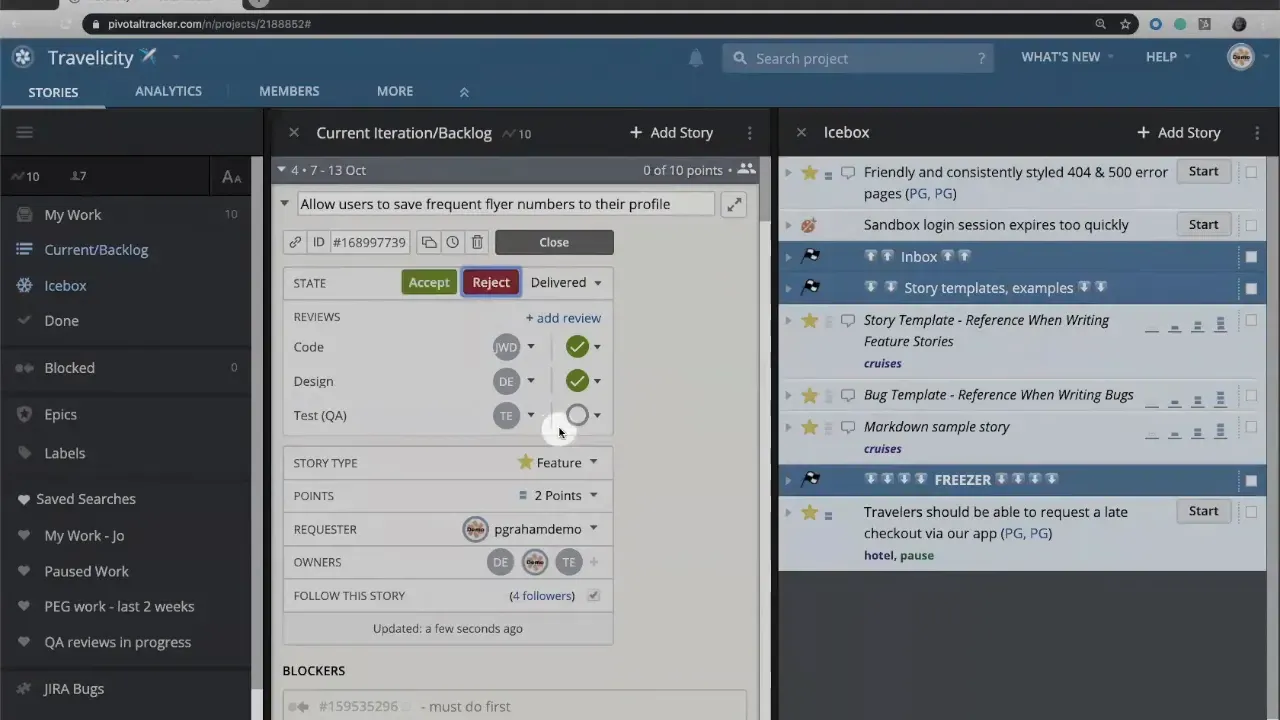
Notifications in LiteTracker are configurable per user. Reviewers and followers receive:
- In-app notifications
- Email notifications
- Slack notifications if integrated
Set notification preferences in your user profile. That way people receive only the alerts they need and the right people see the review updates when revisions occur.
Step 6: Accept the story after all reviews pass
Once each assigned review shows a green check mark, the product manager or owner can accept the story in LiteTracker. Acceptance confirms the story meets acceptance criteria and has passed its QA audit and other reviews.
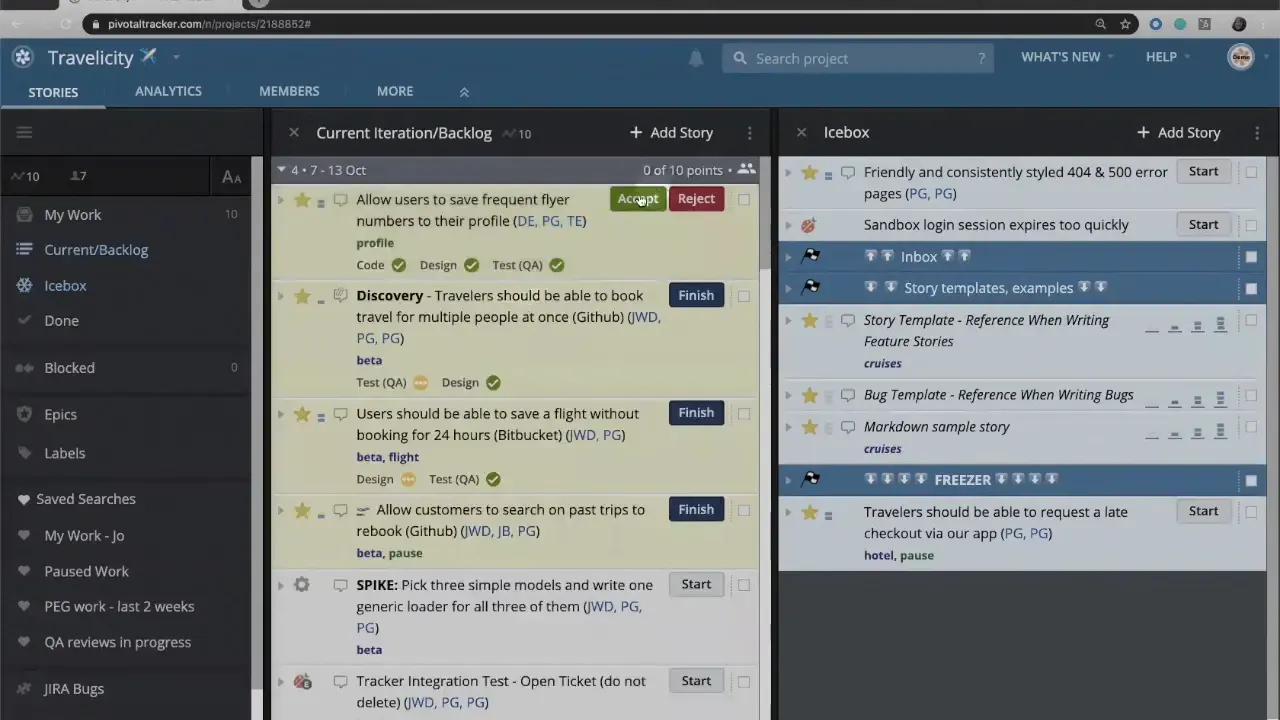
Accepting a story completes the lifecycle and documents the entire review history. That history is especially useful for post-delivery audits, retrospectives, or compliance checks.
Tips for making LiteTracker reviews work smoothly
- Define review types clearly so everyone understands what “passed” means for each type.
- Keep comments short and actionable to speed up the revise and recheck cycle.
- Use multiple reviewers only when necessary to avoid duplicated effort—reserve it for high-risk stories.
- Hide unused review types to reduce visual noise in the review dropdown.
- Lean on activity history rather than hunting down messages—LiteTracker stores every change in the story feed.
Common review workflows you can implement in LiteTracker
- Standard flow: Design -> Code -> QA -> Accept.
- Parallel flow: Design and code run concurrently; QA waits until both pass, then tests.
- High assurance flow: Two independent QA reviews and a security review before acceptance.
Choose the workflow that balances speed and risk for your product and use LiteTracker review types to enforce it with minimal friction.
How do I add or hide custom review types in LiteTracker?
Open Manage review types, add new custom types or hide built-in ones you do not use. Hidden types remain available to restore later, but they are removed from the main dropdown to keep the interface focused.
Can I assign more than one reviewer to the same review type?
Yes. LiteTracker supports multiple reviews of the same type on a single story so you can request independent checks from more than one person for increased confidence.
How are review actions recorded?
Every review action and comment is logged in the story activity feed automatically, including who changed the review status and the comment left when setting it to revise or pass.
What notification methods does LiteTracker support for reviews?
Notifications can be delivered via in-app messages, email, and Slack if integrated. Each user controls their notification preferences in their profile settings.
When should I mark a review as revise instead of leaving a comment?
Mark a review as revise when the work does not meet the defined standard and requires changes. This flags the story as needing action and surfaces the issue in the activity feed. Use comments for specific guidance on what to change.
Final thoughts
LiteTracker reviews are a lightweight way to make review work visible and accountable without disrupting the core workflow. Use them to run checks in parallel, communicate clear rework requests, and create an auditable history of approvals. When teams pair clear review definitions with concise comments and sensible notification settings, LiteTracker reviews speed delivery while preserving quality.
Credits: This tutorial is created based on this original video Reviews in Tracker