
LiteTracker: How to Take Manual Control of Your Current Iteration

LiteTracker gives you the confidence to let a tool estimate what your team can deliver. Sometimes though, you need to override that guidance and plan the current iteration yourself. This guide explains how to switch to manual planning for the current iteration, when it makes sense to do so, and an alternative approach using a simplified point scale. Use LiteTracker to stay honest about velocity while keeping control when you need it.
Step 1: Open project settings
Start by opening your project settings. On the left, click More and then Project Settings. This is where LiteTracker keeps the switch that controls whether the current iteration is planned automatically or manually.
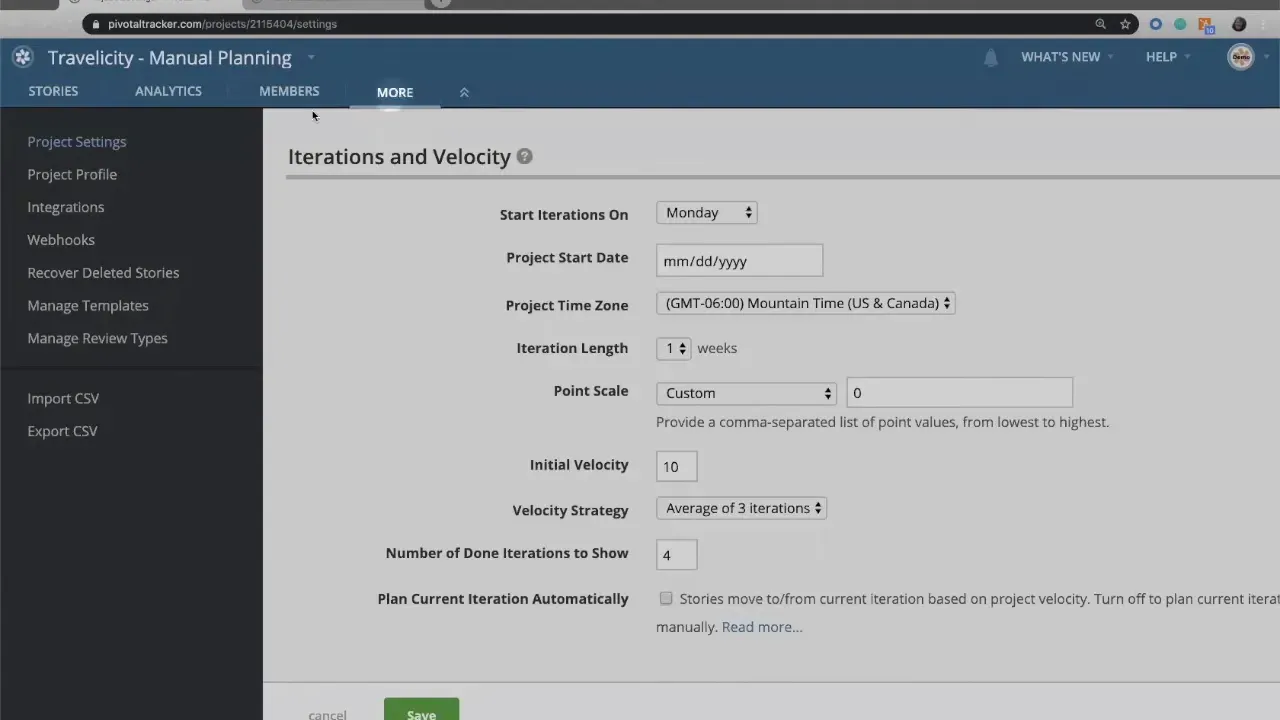
Inside settings you will find an option labeled plan the current iteration automatically. By default this box is checked and LiteTracker plans your current iteration and backlog using your chosen velocity strategy.
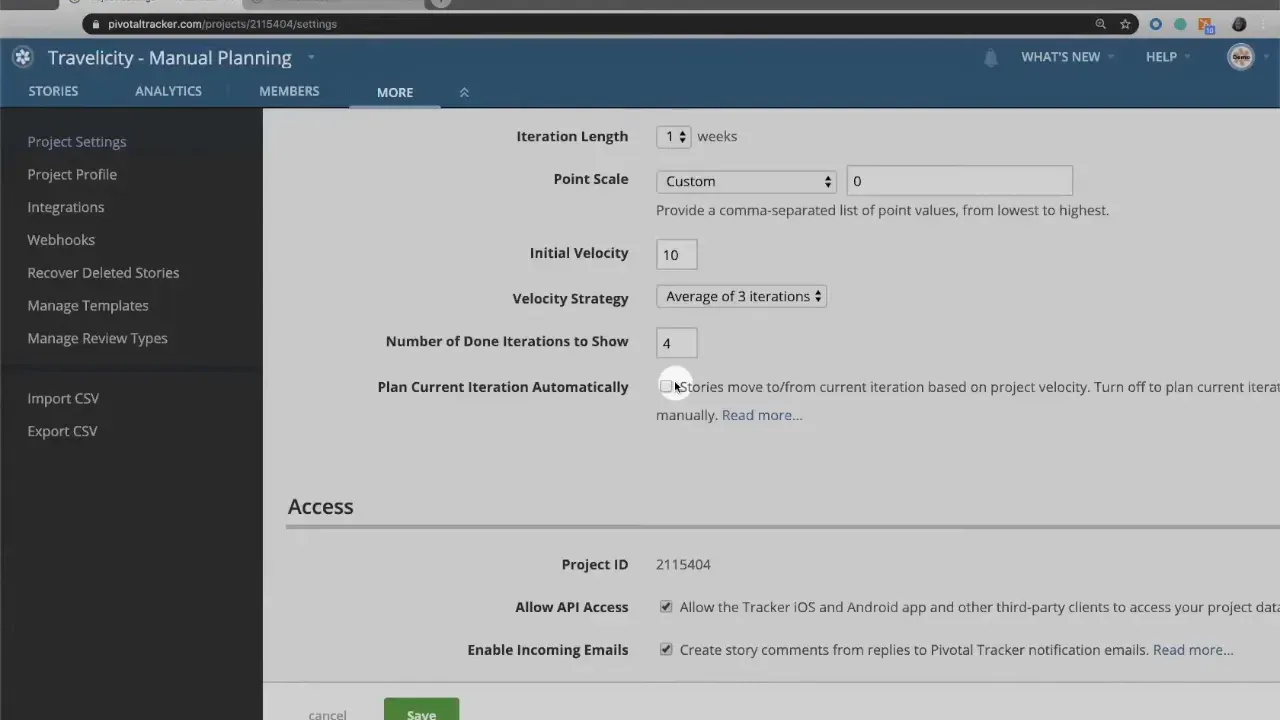
Step 2: Toggle automatic planning for the current iteration
Uncheck the option to plan the current iteration automatically and save the settings. This tells LiteTracker one thing: plan the backlog for me, but let me decide what goes into the current iteration.
"When that is checked that means that tracker is planning your current iteration as well as your backlog automatically."
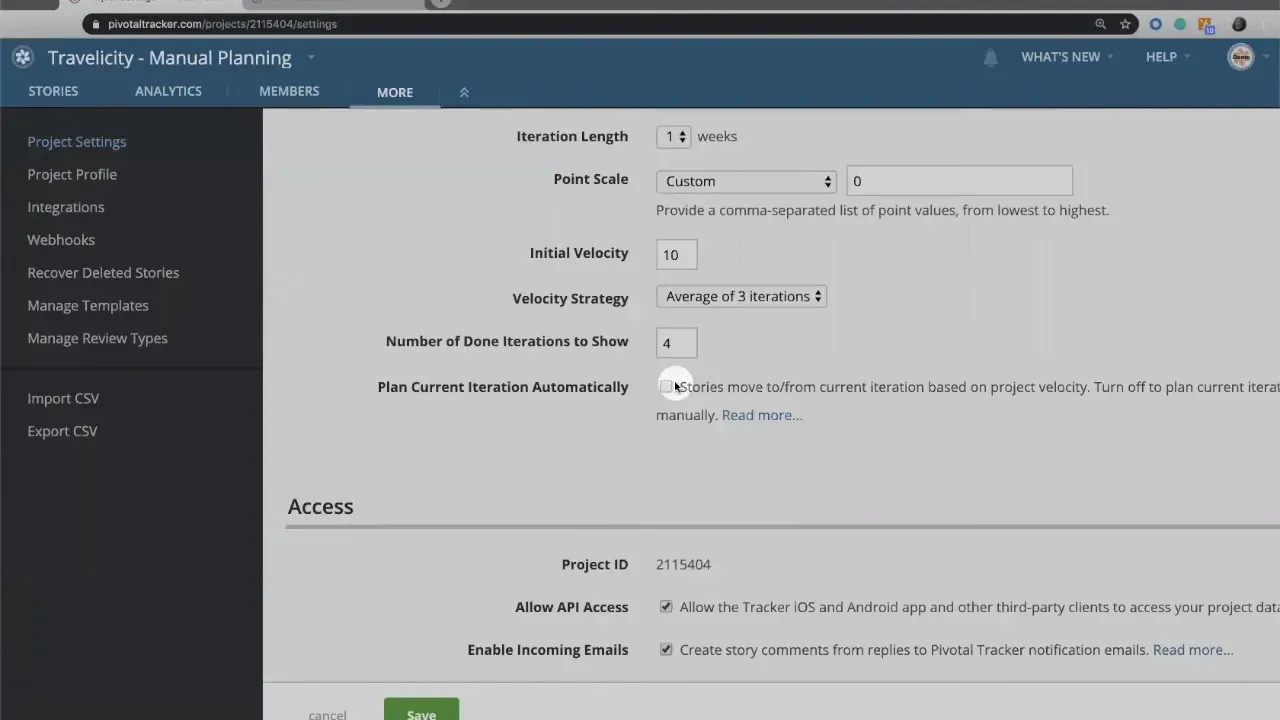
With the automatic setting disabled, you gain manual control. LiteTracker will still use your velocity to plan future iterations in the backlog, so you keep the benefit of forecasting while overriding the immediate slice of work.
Step 3: Plan the current iteration manually
Go to your Stories view. You will see a small MP indicator at the top of the project indicating manual planning. That little marker means you can drag and drop stories into the current iteration with no automatic cap applied by LiteTracker.
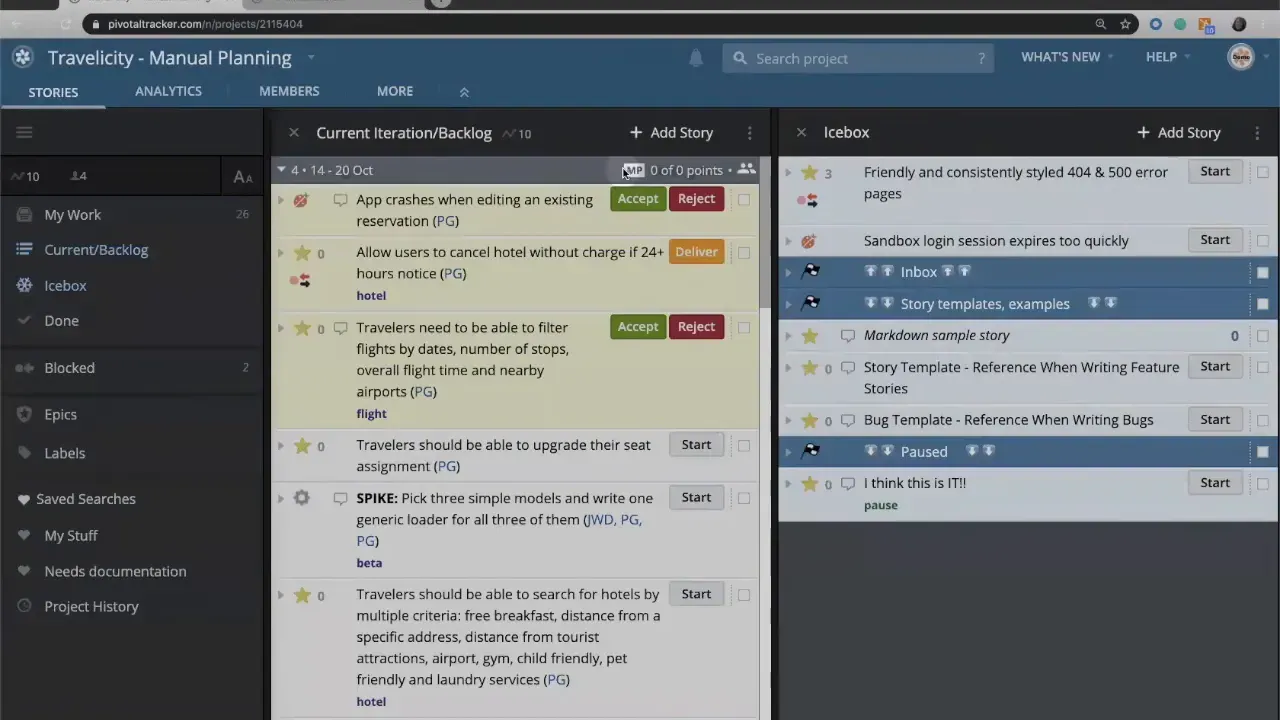
Manual planning lets you:
- Add as many stories as you want to the current iteration, longer or shorter than the typical velocity estimate.
- Trim the iteration to reflect a partial week, a holiday-shortened sprint, or a focused work window.
- React to live circumstances such as production fires, cross-team coordination, or prioritized fixes without waiting for the automated plan to adjust.
Remember: manual planning only affects the current iteration. LiteTracker continues to plan the backlog automatically according to your velocity strategy. That combination gives you immediate flexibility while preserving longer-term predictability.
Step 4: Use a simplified point scale if you rarely estimate
If your team does not use estimates or you are not doing traditional software development, there is another approach to get simplified iteration control. Change your point scale to a custom, minimal scale. For many teams the cleanest choice is a single point value: 0.
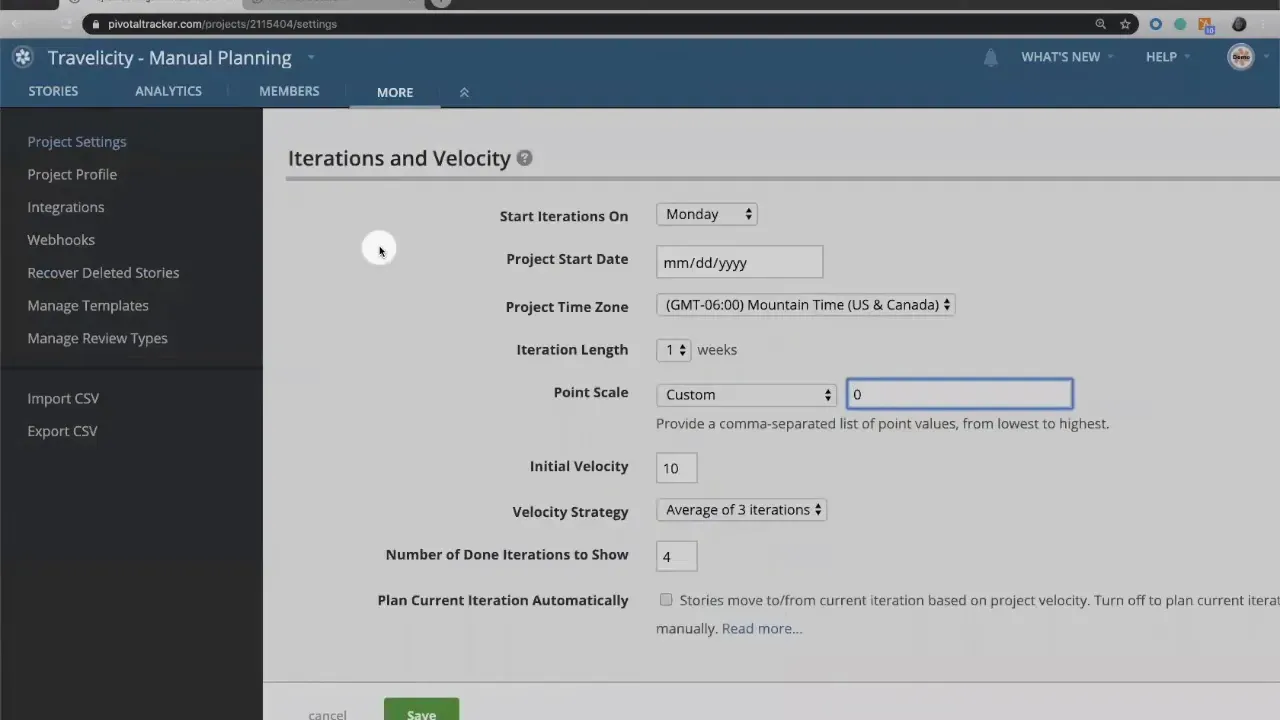
Set your point scale to only 0. With every story estimated as zero, LiteTracker treats all backlog stories as fitting into one iteration. The practical result:
- Your current iteration becomes something you plan entirely by hand.
- Your backlog is effectively a single undivided bucket that will not be automatically split into multiple iterations by LiteTracker.
- You can then use release stories (or call them iterations) to mark boundaries exactly where you want them.
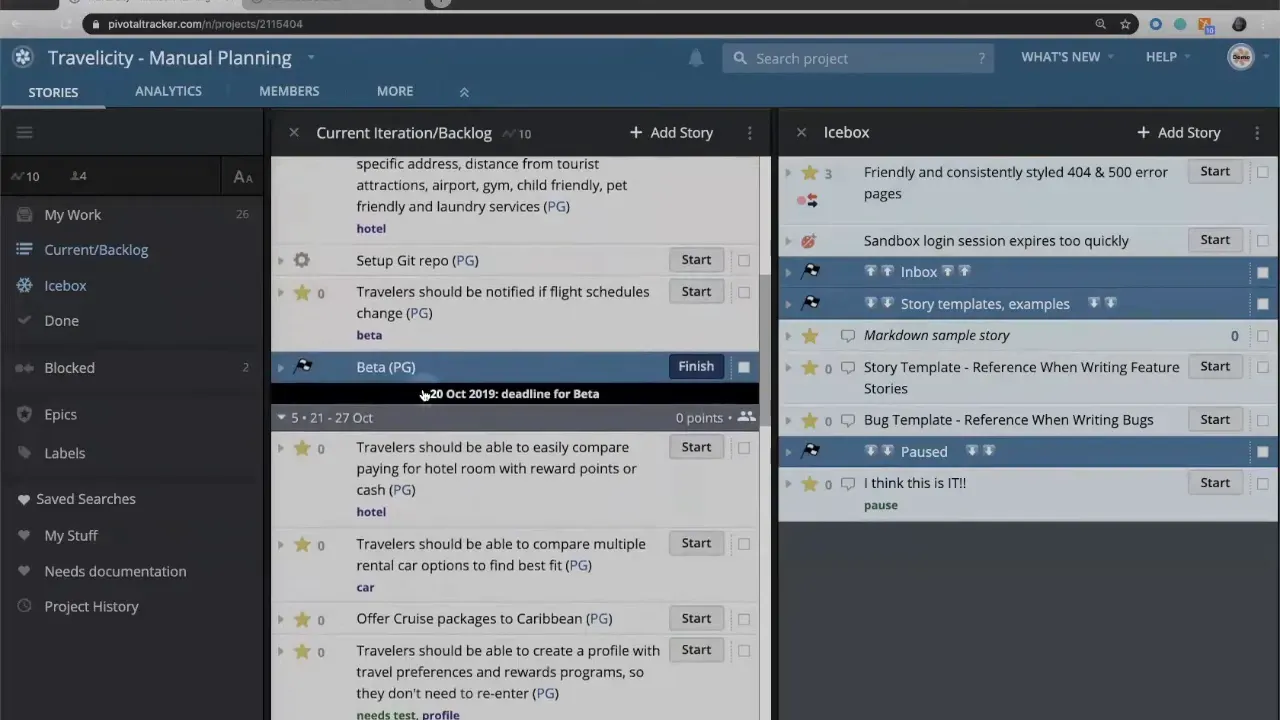
This method turns LiteTracker into a lightweight planning tool for teams that prefer to move items by priority and release markers instead of timeboxed estimates.
Step 5: Use release stories and iteration markers
When you control the current iteration manually or when using a zero point scale, you get full control over release points. Create release stories and place them in the backlog where you want the next milestone to land. Call them iterations, sprints, or releases—whatever aligns with your team language.
Release stories provide a clear, manual signal for when a set of work should be delivered. Combined with LiteTracker's automatic backlog planning or a simplified point scale, release markers give you both control and clarity.
Tips for using manual planning effectively
- Document why you are planning manually. Make a quick note inside the project so future team members understand the decision.
- Use manual planning selectively. Prefer to use it for the current iteration only. Let LiteTracker manage the backlog and future iterations unless you have a strong reason not to.
- Combine manual planning with retrospectives. If you often override the automated plan, discuss whether velocity settings or estimation practices need adjustment.
- Be explicit about release stories. If you rely on zero-point scale, maintain release markers so the team knows what constitutes a deliverable scope.
Common scenarios where manual planning helps
- Shortened iterations due to holidays or sprint-less weeks.
- Hotfix windows that must be handled inside the current iteration.
- Nontraditional teams that prefer priority-based flow rather than timeboxed velocity.
- Coordinated releases that require manual alignment across multiple teams.
How do I know if manual planning is enabled for my project?
You will see an MP indicator at the top of the Stories view when manual planning is active. Additionally, the "plan the current iteration automatically" option in Project Settings will be unchecked.
Will LiteTracker still plan future iterations if I plan the current one manually?
Yes. LiteTracker will continue to plan the backlog and future iterations based on your velocity strategy. Manual planning only applies to the current iteration.
What happens if I set my point scale to only zero?
If all stories are zero, LiteTracker treats the backlog as one iteration and will not split it into multiple iterations automatically. This lets you use release stories as manual iteration or milestone markers.
Can manual planning cause problems with velocity tracking?
Manual planning can affect short-term velocity numbers because you control what goes into the current iteration. Use manual planning sparingly and review velocity in retros to keep long-term forecasting accurate.
Is manual planning reversible?
Yes. Simply re-enable "plan the current iteration automatically" in Project Settings to return to automatic planning for the current iteration. The backlog planning remains automated unless you change your point scale.
Wrap up
LiteTracker balances automated honesty about capacity with the flexibility teams sometimes need. Turning off automatic planning for the current iteration gives you direct control over what your team will work on next, while keeping the backlog forecasts intact. If estimates are not helpful for your team, switching to a zero-point scale and using release stories gives a simple, manual workflow that still benefits from LiteTracker's structure.
Try manual planning for a single iteration and see how it aligns with your team cadence. Keep notes, run a quick retrospective, and adjust whether you use manual planning again based on the results. LiteTracker supports both automated and manual workflows—choose the one that helps your team deliver reliably.
Appendix: Practical checklist for manual planning
- Confirm manual planning is enabled in Project Settings and the plan the current iteration automatically box is unchecked.
- Document the reason for manual planning inside the project so future team members understand the decision.
- Add or trim stories in the current iteration to reflect the exact scope you want the team to address.
- Create release stories or iteration markers to indicate milestone boundaries if you use a zero-point scale.
- Run a focused retrospective after the manual iteration to evaluate impacts on velocity and forecasting.
Quick decision flow
- If a short-term event (holiday, hotfix, coordinated release) affects the current period, consider manual planning.
- If you frequently override the automated plan, review your velocity and estimation practices before defaulting to manual planning long-term.
- If your team prefers priority-based flow over timeboxed estimates, set a zero-point scale and use release markers for scope boundaries.
Retrospective prompts
- Did manual planning improve the team's ability to respond to the issue that prompted it?
- Were there any negative side effects on predictability or stakeholder expectations?
- Should velocity settings or the point scale be adjusted to reduce the need for future manual overrides?
- Are release markers being maintained clearly so everyone understands deliverable boundaries?
Use this appendix as a quick reference when switching between automated and manual planning to keep decisions deliberate, documented, and reversible.
Credits: This tutorial is created based on this original video Manual planning in Tracker