
How to Use Search in LiteTracker
LiteTracker gives you more than a simple search box. It gives you a flexible query language, saved searches, and quick reveal tools that let you find exactly the stories you need without sifting through the entire backlog. This guide walks through the practical steps to build, combine, and save searches so you can surface the right work instantly in LiteTracker.
Step 1: Open the search bar and use the cheat sheet
The search bar sits at the top of the project. Click the small question mark next to it to reveal a compact cheat sheet of the most common search syntax. You can copy any example directly from that cheat sheet into the search field to get started fast.
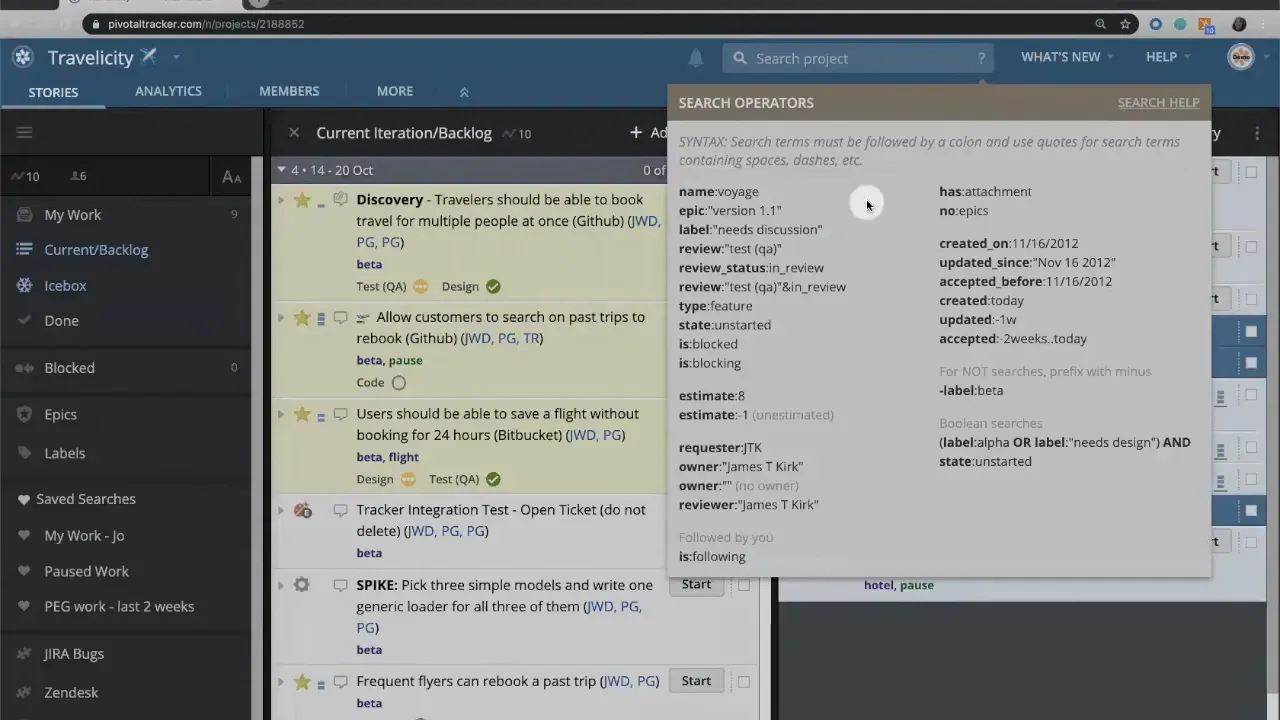
The cheat sheet hides again when you click the question mark a second time. Use it as a quick reference until you feel comfortable writing queries from scratch in LiteTracker.
Step 2: Build a query and combine criteria
Start with a single criterion, for example to surface all QA reviews:
"search all of the various reviews that we have and show me a list of all of the stories that have a test QA review type."
Press Enter to run the query. If you want to refine results, combine criteria using an ampersand. For example, to see only QA reviews that are currently underway, add the in review criterion. Combining filters looks like this in practice:
- review:test-type:QA
- &
- state:in-review
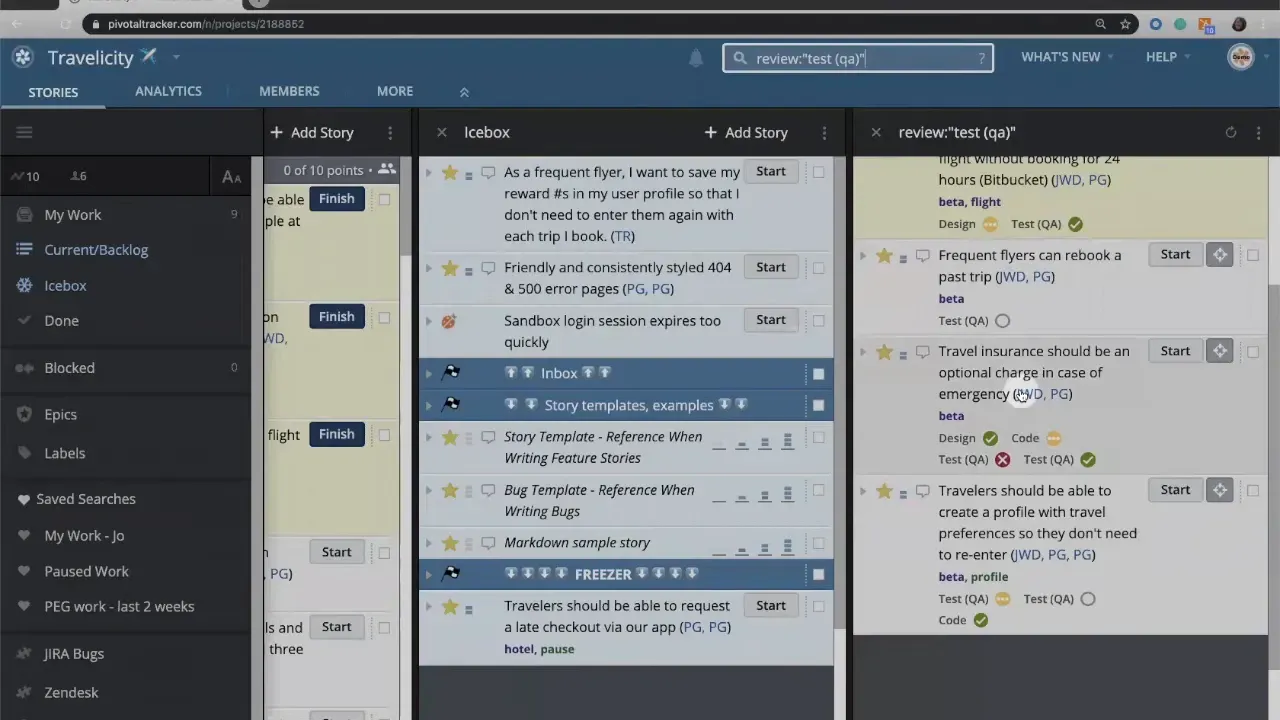
After combining criteria you will see a much shorter, focused list. That same approach works for any pair or group of filters: labels-and-epics-to-slice-your-story-views-in-tracker" target="_blank">labels, owners, epics, dates, and more. LiteTracker supports logical operators and multiple parameters so you can create precise searches.
Step 3: Save and pin searches for repeated use
If a search is something you will run repeatedly, save it. From the search menu you can either pin the search so it remains open on screen, or save it to the sidebar for one-click access later.
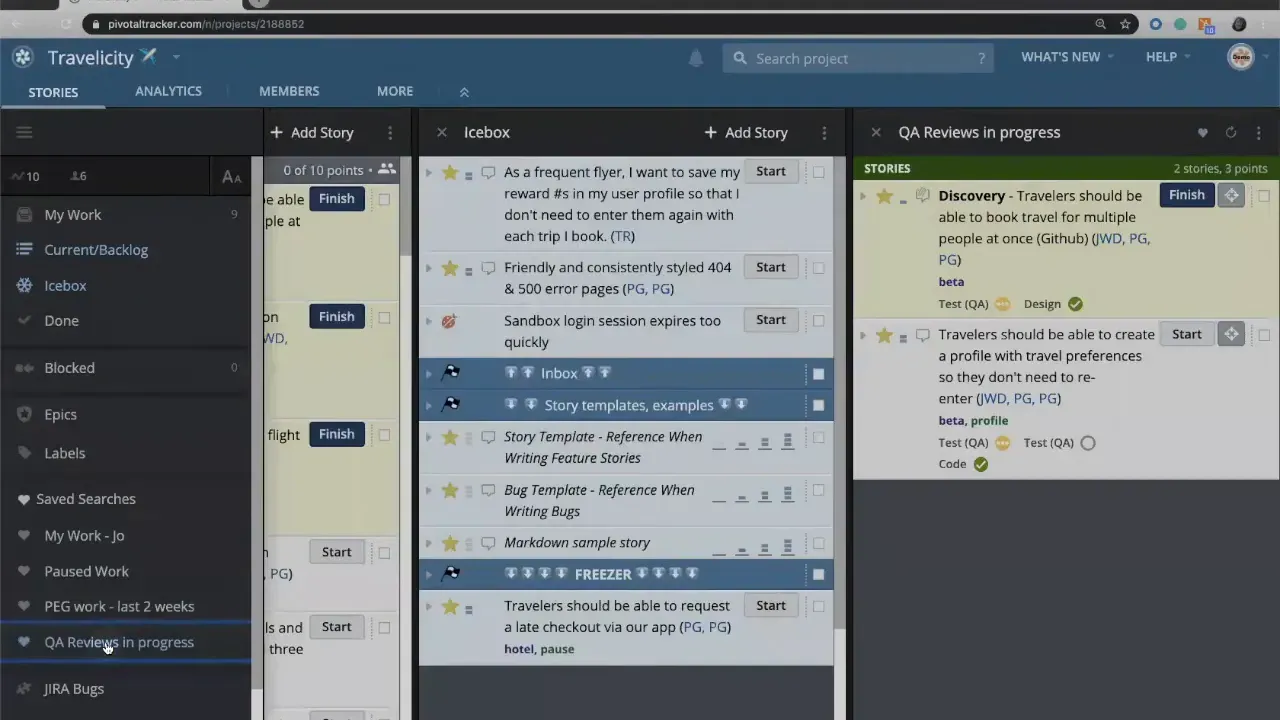
Name saved searches so teammates instantly recognize their purpose. For example, save a search as QA reviews in progress. After saving, it appears under Saved Searches in the sidebar. Clear the search box and rerun it any time by selecting that saved item.
When a saved search becomes obsolete you can edit the criteria or delete it using the heart menu. Saving searches turns a complex query into a repeatable workflow in LiteTracker.
Step 4: Use reveal, no-parameters and advanced filters
Reveal is a powerful context tool. When you run a search you can click Reveal to see where a returned story lives in the backlog or icebox. That shows the item in context with other stories and helps you assess priority and relationships quickly.
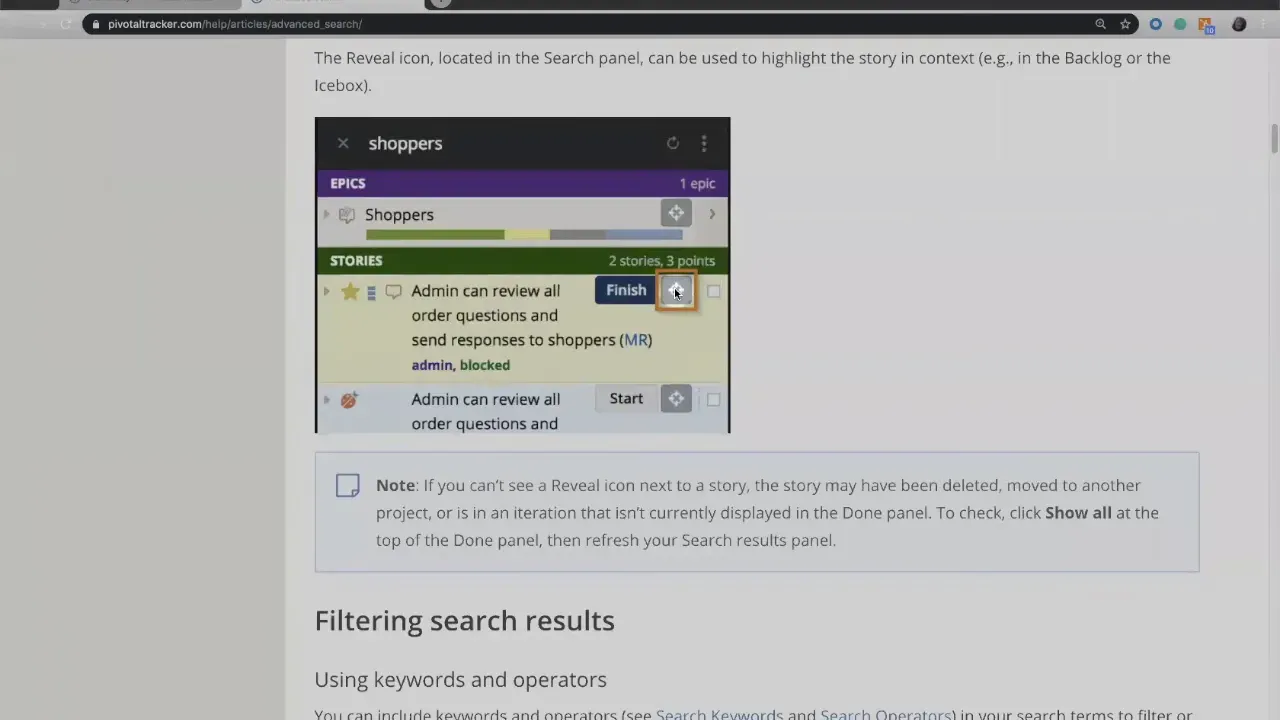
LiteTracker also supports the no parameter to find items missing a value. Use it to find stories that do not have a label or do not have an owner so you can close gaps in categorization or assignment.
- Find unlabeled stories: label:no
- Find unassigned stories: owner:no
For even more power, visit the advanced search help. The help article lists additional options such as searching labels on epics, date ranges, and other specialized filters. These advanced parameters let LiteTracker act like a lightweight reporting tool for your team.
Step 5: Search by person and other practical examples
To get a quick view of someone’s workload, search for their assigned work. You can search by full name in quotes or by initials. For example:
- owner:"Alex Johnson"
- owner:AJ
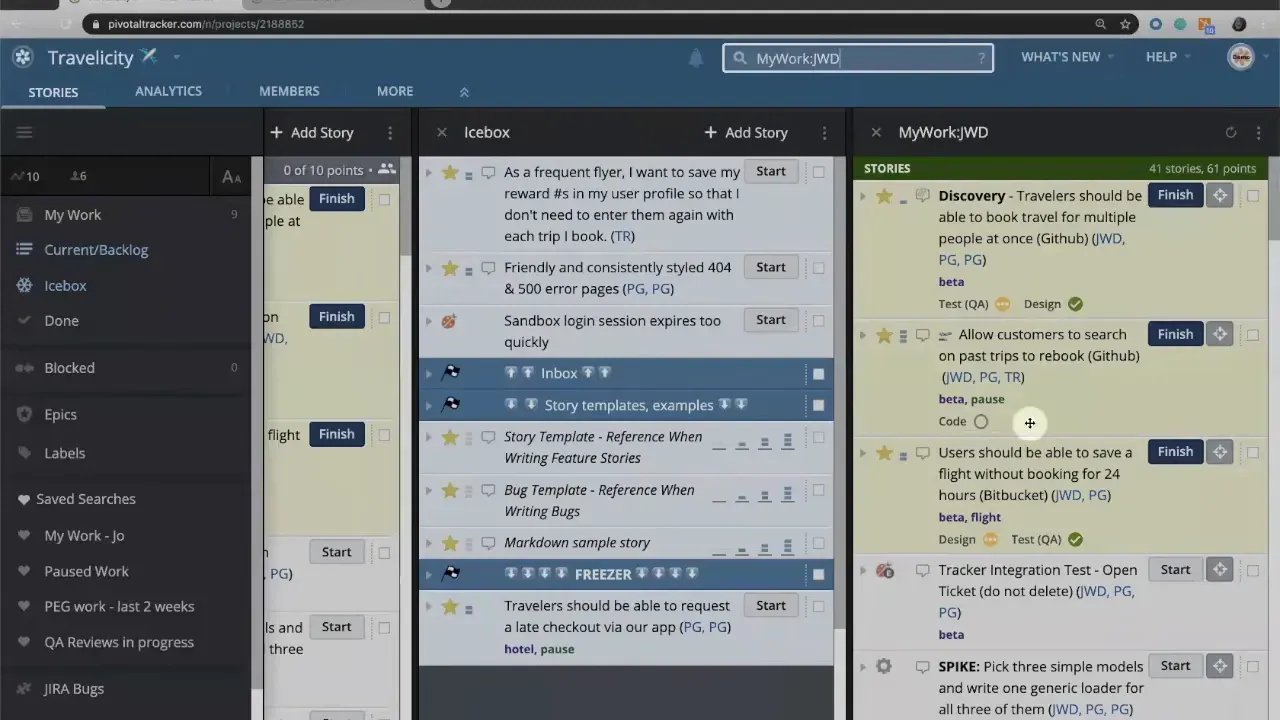
That query returns all stories assigned to that person, useful for capacity planning and balancing assignments. Use the same approach to filter by labels, epics, or dates when preparing sprint reviews or planning sessions.
Step 6: Best practices and tips for faster searches
Start broad, then narrow. Run a simple filter first, then add parameters to refine the set. That helps avoid accidentally filtering too much and missing results.
Name saved searches consistently. Adopt a naming convention like "Team - Context" or "Function - State" so saved searches are discoverable for the whole team using LiteTracker.
Use no to find gaps. Regularly search for label:no and owner:no to find stories that need categorization or assignment.
Leverage reveal for context. Before moving or changing a story, reveal it to see where it sits in the backlog and what other items surround it.
Common query examples
- QA reviews in progress - review:test-type:QA & state:in-review
- Stories with no owner - owner:no
- Work assigned to Mei - owner:"Mei Chen" or owner:MC
- Unlabeled backlog items - label:no & state:backlog
How do I save a search so it appears in my sidebar?
Run the query, open the search menu, choose Save to Sidebar, give it a descriptive name, and confirm. After saving it will appear under Saved Searches for one-click access in LiteTracker.
Can I edit a saved search later?
Yes. Open the saved search, click the heart or menu associated with it, select Edit to change the criteria, then save the revised query. You can also delete the saved search if it is no longer needed.
What if I need filters not shown in the cheat sheet?
Click the Search Help link from the cheat sheet to open the advanced search documentation. It lists every supported parameter and examples for labels, epics, dates, and more in LiteTracker.
How can I find work assigned to a teammate quickly?
Type owner: followed by their name in quotes or their initials for quick results. For example, owner:"Sam Patel" or owner:SP will surface their assigned stories in LiteTracker.
Is it possible to find stories that lack certain fields?
Yes. Use the no parameter to find items missing values, such as label:no or owner:no. This is a fast way to identify and correct gaps in project data.
Conclusion
Search in LiteTracker transforms noisy backlogs into targeted lists of work. Use the cheat sheet to learn syntax, combine filters with ampersands for precision, save searches for repeatable workflows, and use reveal and no-parameters to keep the backlog tidy. With these steps, you can treat search as a lightweight reporting and discovery tool that keeps your project organized and your team focused.
If you have external resources to link, consider linking the Search Help for advanced syntax examples and the Saved Searches documentation for sidebar usage.
For deep-dive examples, add a link to the advanced search guide referenced in Step 4.
Credits: This tutorial is created based on this original video How to use Search in Tracker